How to Use MT Manager’s Dual-Panel for Faster File Transfers
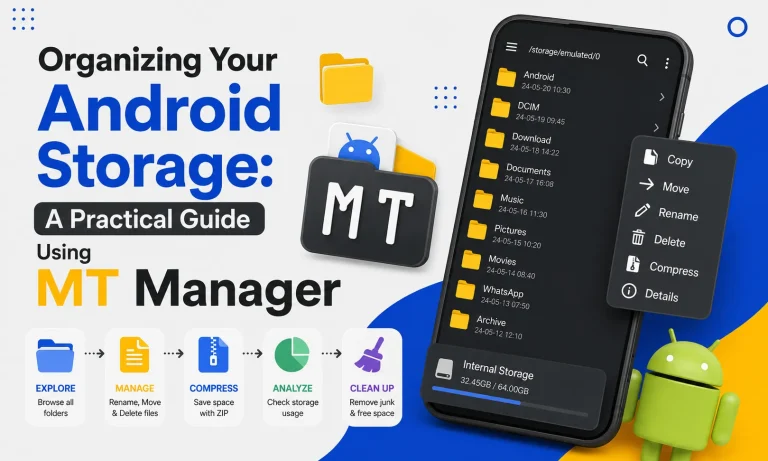
Managing files efficiently is an important part of using any Android device. Whether you are organizing APK files, moving documents, or backing up important folders, a faster workflow saves both time and effort. MT Manager APK provides a powerful dual-panel interface that simplifies file management and makes transfers much more efficient.
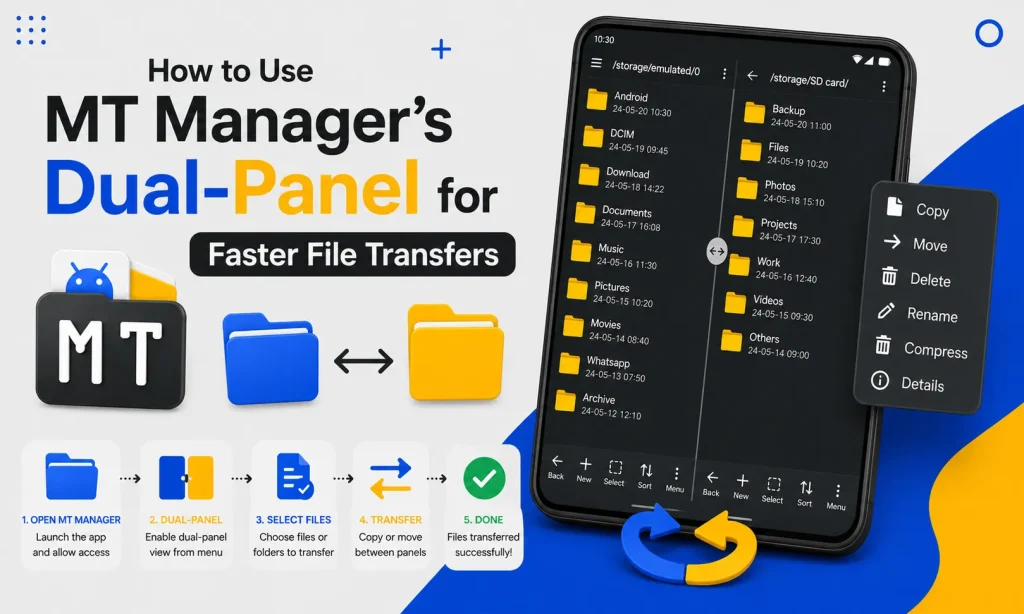
Unlike traditional file managers that display only one folder at a time, MT Manager allows you to work with two directories simultaneously. This desktop-style approach reduces unnecessary navigation and helps users complete file operations in fewer steps. In this guide, you will learn how to use MT Manager APK for faster and smarter file transfers.
What Is Dual-Panel Mode?
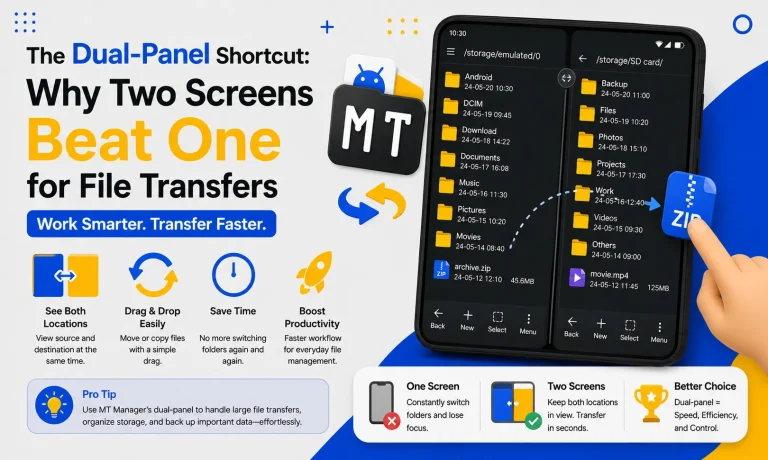
Dual-panel mode is a file management layout that displays two folders on the same screen. One panel usually acts as the source folder, while the other serves as the destination folder. This setup allows users to copy, move, and compare files without repeatedly switching between directories.
The interface is designed to improve productivity during everyday file management. Instead of opening and closing multiple folders, everything remains visible throughout the transfer process. This saves time and minimizes mistakes.
Quick Tip
Dual-panel mode works best when organizing APK files, images, videos, ZIP archives, and backup folders.
Why Use Dual-Panel Instead of Single-Panel?
Single-panel file managers require users to navigate back and forth between folders. This repeated navigation becomes slow and frustrating when transferring multiple files. Dual-panel mode eliminates these unnecessary steps.
With both folders visible, selecting the correct destination becomes much easier. Users can complete transfers quickly without losing track of their location. This improves both speed and accuracy.
Benefits of Using MT Manager’s Dual-Panel
The dual-panel interface offers several practical advantages for Android users. It improves workflow while making file organization much simpler. Even beginners quickly notice the productivity benefits.
Key Benefits
- Faster file transfers
- Reduced folder navigation
- Better file organization
- Easy folder comparison
- Efficient batch operations
- Improved multitasking
- Fewer transfer mistakes
- Desktop-like file management
How to Enable Dual-Panel Mode
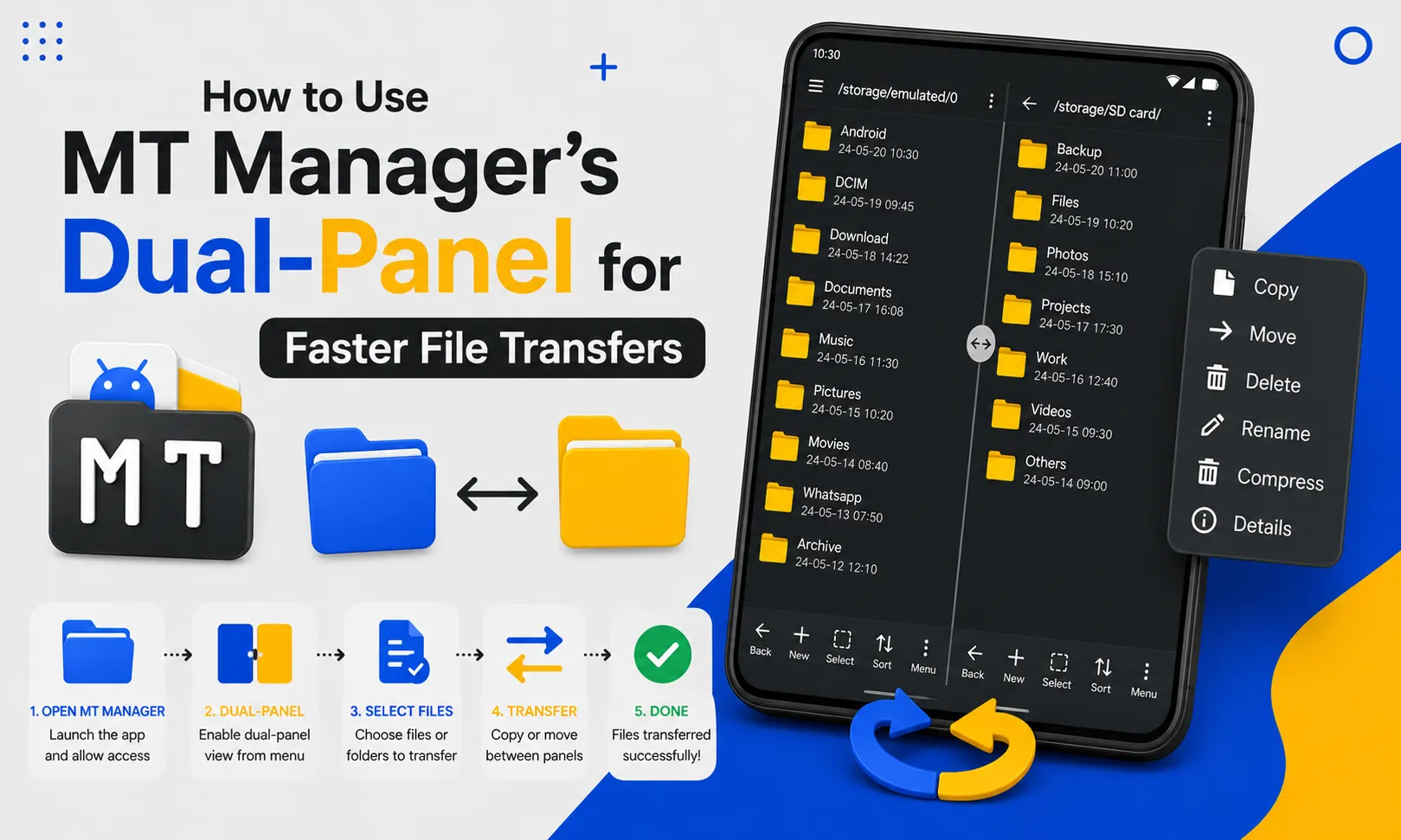
Opening dual-panel mode in MT Manager is simple and requires only a few steps. After launching the application, both panels become available through the main interface. Users can then browse different folders independently.
Each panel functions separately while remaining fully synchronized with the others. This allows one side to display internal storage while the other opens an SD card or another directory. The flexible layout improves overall efficiency.
Step 1: Open MT Manager
Launch MT Manager APK from your Android device after installation. Wait for the application to load your available storage locations. The home screen displays your primary file management interface.
Once opened, familiarize yourself with the navigation controls. Understanding the layout makes future file management easier. The interface is clean and designed for quick access.
Step 2: Open the Source Folder
Navigate to the folder containing the files you want to transfer. This may include Downloads, Documents, Pictures, or APK folders. Select the appropriate directory before proceeding.
Take a moment to verify that the correct files are available. Confirming the source folder prevents accidental transfers. Careful preparation helps avoid unnecessary mistakes.
Step 3: Open the Destination Folder
Use the second panel to browse the location where the files will be copied or moved. This destination may be internal storage, an SD card, or another project folder. Keeping both directories open simplifies navigation.
Having both folders visible allows you to verify the destination before starting the transfer. This reduces confusion and improves accuracy. The entire workflow becomes much more organized.
Step 4: Select the Files
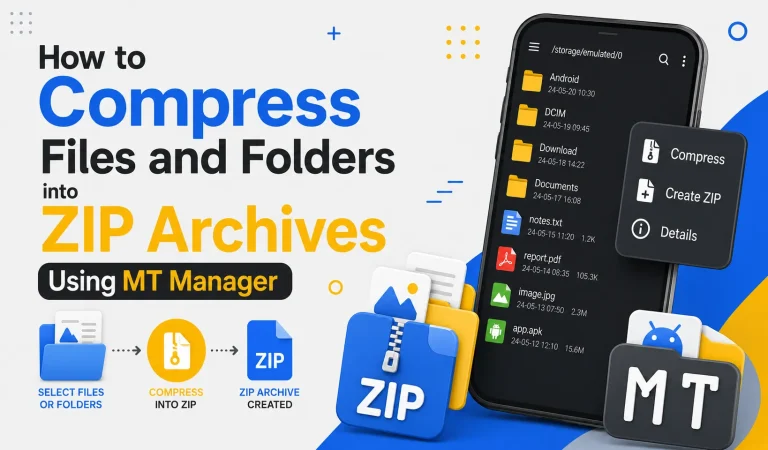
Choose one or multiple files from the source panel. MT Manager allows batch selection for greater efficiency when managing large collections. This feature significantly reduces repetitive work.
Multiple files can be selected within seconds. Batch selection is especially useful for photos, APK files, and backups. Large transfers become much easier to manage.
Step 5: Copy or Move the Files
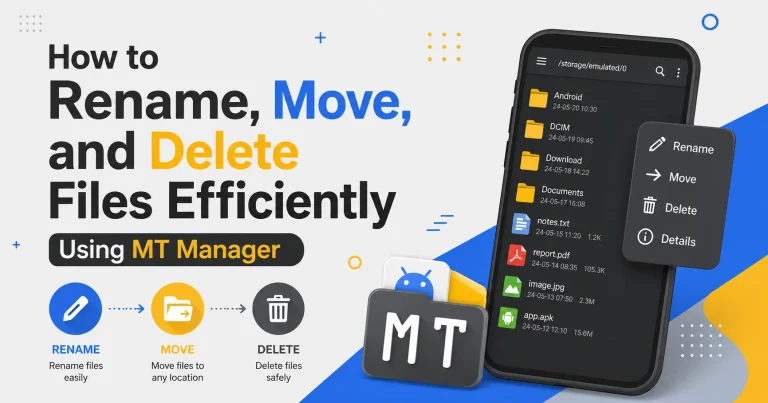
After selecting the desired files, choose either the Copy or Move option. The destination folder remains visible in the opposite panel, allowing immediate confirmation before the operation begins. This visual approach minimizes errors.
Copying creates a duplicate while preserving the original files. Moving transfers the files completely to the new location. Choose the option that best fits your needs.
Step 6: Verify the Transfer
Once the transfer finishes, review the destination folder. Confirm that every selected file appears in its new location. This final check ensures that no files were missed.
Verification is particularly important when transferring important documents or application files. A quick review helps maintain organized storage. Good habits prevent future problems.
Best Situations for Dual-Panel Transfers
Dual-panel mode is useful in many everyday scenarios. Whether managing personal files or work projects, it simplifies routine tasks. Users save considerable time compared to traditional file managers.
| File Type | Why Dual-Panel Helps |
|---|---|
| APK Files | Quick organization |
| Photos | Faster album sorting |
| Videos | Easy storage management |
| Documents | Better folder organization |
| ZIP Archives | Convenient extraction workflow |
| Backups | Simple file verification |
Organizing APK Files
Many Android users maintain multiple application versions for testing or backup purposes. Dual-panel mode makes it easy to move APK files into separate folders for better organization. Well-organized storage improves long-term file management.
Categorizing applications also simplifies future updates. Older versions remain easy to locate when needed. Organized APK collections reduce unnecessary clutter.
Moving Photos and Videos
Media libraries grow quickly over time. Dual-panel mode allows users to organize images and videos into albums without repeatedly opening folders. The process becomes much faster and more enjoyable.
Travel photos, family memories, and downloaded videos can be sorted within minutes. Better organization makes finding files easier later. Consistent storage also saves valuable time.
Managing Backups
Creating backups is only useful when files remain organized. Dual-panel mode helps users compare source and backup folders side by side. This makes it easier to confirm that every important file has been copied.
Verification reduces the chance of missing valuable documents. Organized backups also simplify future restoration. Regular backup habits improve overall data security.
Tips for Faster File Transfers
Using a few simple techniques can improve transfer speed and organization. Small workflow improvements often produce noticeable productivity gains. Consistency is the key to efficient file management.
Recommended Tips
- Organize folders before transferring files.
- Use clear folder names.
- Delete duplicate files regularly.
- Transfer multiple files together.
- Verify completed transfers.
- Keep sufficient free storage available.
- Back up important data frequently.
Dual-Panel vs Traditional File Management
| Feature | Dual-Panel | Traditional Manager |
|---|---|---|
| Folder Visibility | Two folders | One folder |
| File Navigation | Minimal | Frequent |
| Batch Transfers | Excellent | Limited |
| File Comparison | Easy | Difficult |
| Productivity | High | Moderate |
| User Experience | Efficient | Basic |
Common Mistakes to Avoid
Selecting the wrong destination folder is one of the most common mistakes during file transfers. Always verify both panels before confirming the operation. A quick review prevents accidental file placement.
Another mistake is transferring files without creating backups. Important documents should always have an additional copy before major organizational tasks. Good backup habits provide extra protection.
Frequently Asked Questions
Is dual-panel mode suitable for beginners?
Yes, the interface is intuitive and easy to understand. Most users become familiar with the layout after only a few transfers. The side-by-side design simplifies navigation.
Can I transfer multiple files at once?
Yes, MT Manager supports batch file selection. Multiple items can be copied or moved in a single operation. This significantly improves efficiency.
Does dual-panel work with external storage?
Yes, users can open internal storage in one panel and external storage in the other. This simplifies transfers between different storage locations. Managing SD cards becomes much easier.
Is dual-panel useful for APK management?
Yes, it is one of the most efficient ways to organize APK collections. Files can be categorized, backed up, and moved quickly. The visual layout reduces navigation time.
Does it improve productivity?
Yes, fewer navigation steps lead to faster file management. Both folders remain visible throughout the workflow. Users complete routine tasks more efficiently.
Final Verdict
Dual-panel mode is one of the most valuable features available in MT Manager because it transforms file management into a faster and more organized process. By keeping both source and destination folders visible, users can copy, move, compare, and organize files with greater confidence and fewer mistakes. If you regularly manage APK files, documents, media, or backups, MT Manager APK provides a workflow that is both efficient and easy to master.