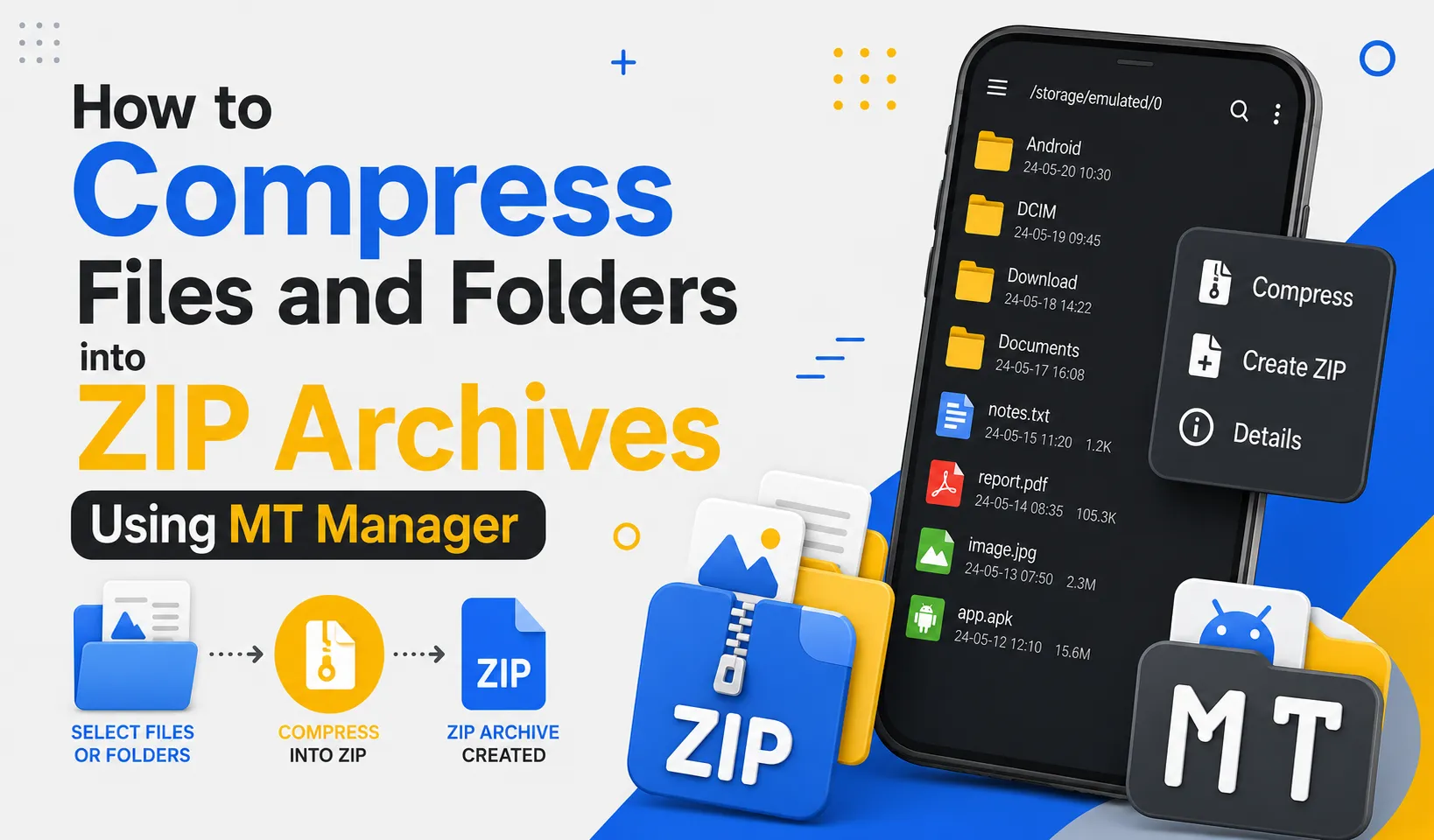
How to Compress Files and Folders into ZIP Archives Using MT Manager
Compressing files into ZIP archives is one of the easiest ways to organize data, save storage space, and share multiple files as a single package. Whether you need to back up documents, archive APK files, or send project folders, ZIP compression keeps everything neat and easy to manage. MT Manager APK includes built-in compression tools that allow you to create ZIP archives directly on your Android device without installing additional applications.
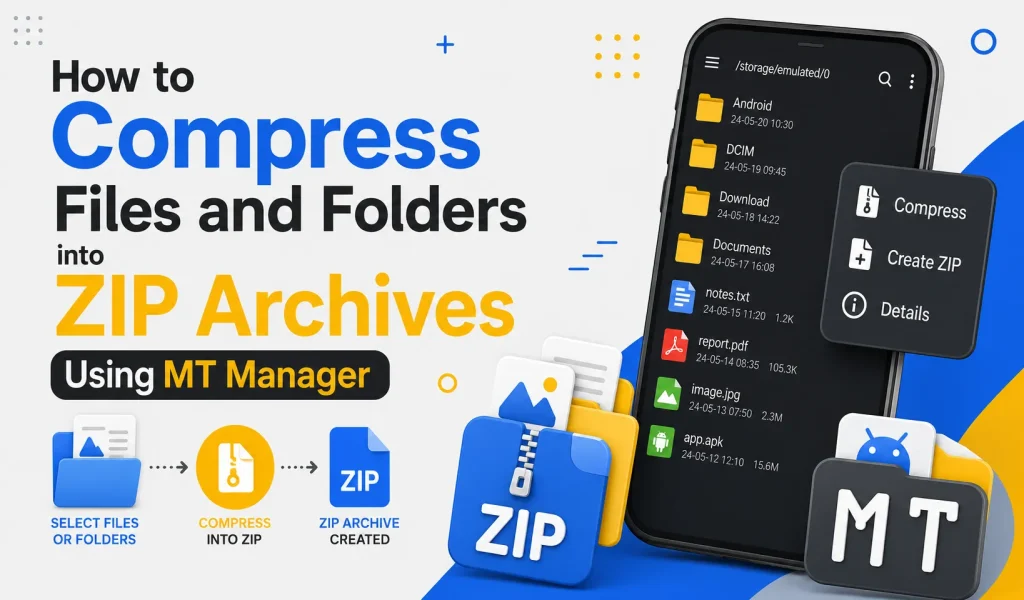
Instead of uploading dozens of separate files, you can combine everything into one compressed archive within minutes. MT Manager’s dual-panel interface and advanced file management features make the compression process simple for both beginners and experienced users. This guide explains how to compress files and folders into ZIP archives using MT Manager APK.
What Is a ZIP Archive?
A ZIP archive is a compressed file that combines one or more files or folders into a single package. Compression reduces storage requirements while keeping related files together for easier organization. ZIP archives are supported by almost every operating system and file management application.
Many Android users rely on ZIP archives for backups, file sharing, project management, and application storage. Instead of transferring multiple files individually, a single archive simplifies the process. This makes ZIP one of the most widely used compression formats.
Quick Tip
Compress related files into one ZIP archive before sharing them to make downloads and transfers much easier.
Why Compress Files into ZIP Archives?
Large numbers of individual files can quickly become difficult to organize. Compressing them into one archive reduces clutter while improving storage management. It also simplifies backups and file transfers.
ZIP archives help preserve folder structures during transfers. Instead of recreating folders manually, everything remains organized inside the archive. This saves both time and effort.
Benefits of ZIP Compression
ZIP compression offers several practical advantages for Android users. It improves organization while making files easier to store and transfer. Even everyday file management becomes more efficient.
Key Benefits
- Save storage space
- Organize multiple files
- Faster file sharing
- Easier backups
- Maintain folder structure
- Reduce storage clutter
- Simplify project management
- Improve file transfers
Why Use MT Manager for ZIP Compression?
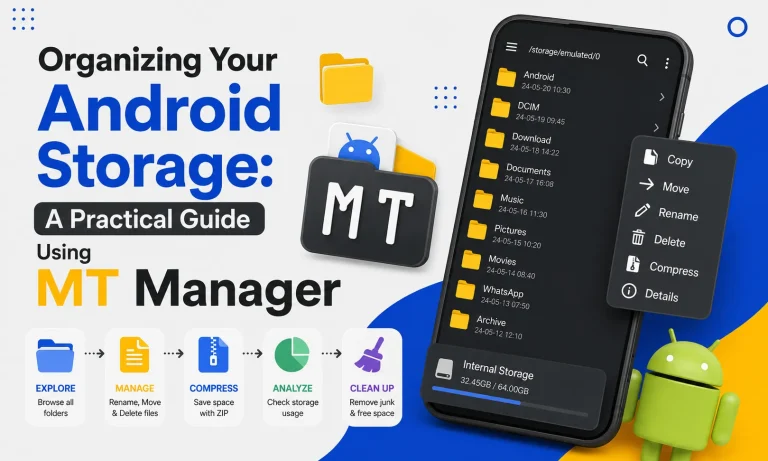
MT Manager combines file management and archive creation within a single application. Users can browse folders, select files, and create ZIP archives without switching between different apps. Everything remains available inside one convenient interface.
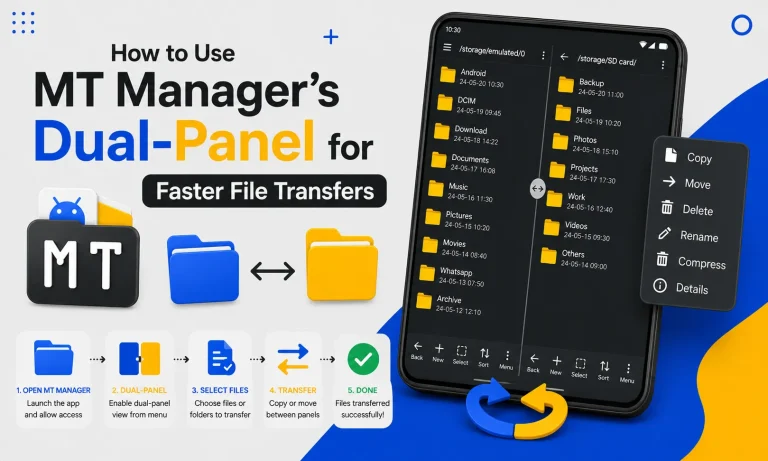
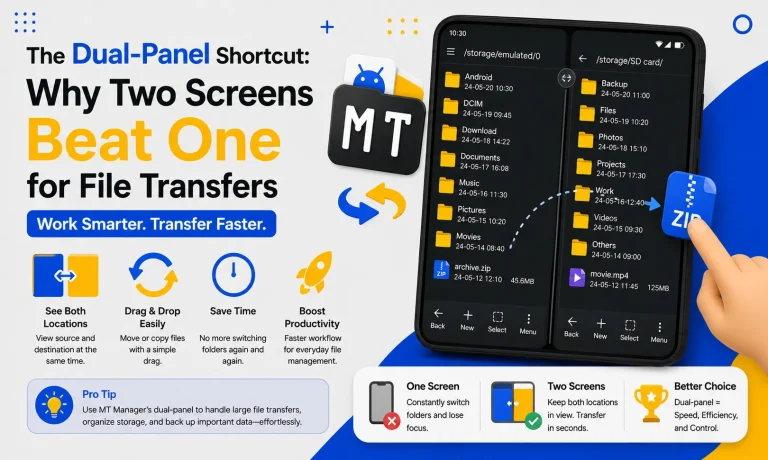
The dual-panel layout also simplifies moving compressed archives into different folders. Large file collections become easier to organize after compression. This desktop-style workflow improves productivity.
Files You Can Compress
MT Manager supports compressing many different file types into ZIP archives. Users can organize both personal and work-related files efficiently. Almost any collection of files can be compressed.
| File Type | Can Be Compressed |
|---|---|
| APK Files | Yes |
| Documents | Yes |
| Images | Yes |
| Videos | Yes |
| Music Files | Yes |
| Project Folders | Yes |
| Backup Files | Yes |
| ZIP Collections | Yes |
Step 1: Open MT Manager
Launch MT Manager on your Android device and wait for the storage directories to load completely. The home screen displays your internal storage, SD card, and available folders. From here, you can begin locating the files you want to compress.
Spend a few moments reviewing the interface if you are using the application for the first time. Understanding the navigation improves workflow efficiency. The dual-panel layout simplifies file management.
Step 2: Navigate to the Files
Browse to the folder containing the files or folders you want to compress. These may include documents, APK installers, images, videos, or project resources. Selecting the correct location is the first step.
Review the folder contents before continuing. Confirm that every required file is present. Careful preparation reduces mistakes later.
Step 3: Select the Files or Folder
Use the multi-selection feature to highlight one or more files. You can also select an entire folder if you want to compress everything inside it. Batch selection makes archive creation much faster.
Double-check your selection before moving forward. Verifying the chosen files helps avoid missing important data. This simple habit improves organization.
Step 4: Choose the Compress Option
After selecting your files, open the available file operations menu and choose the compression option. MT Manager will prepare the selected items for archive creation. The process is straightforward and beginner-friendly.
The application supports compressing both individual files and complete directories. This flexibility makes it suitable for many different tasks. Compression begins after confirming your settings.
Step 5: Name the ZIP Archive
Enter a clear and descriptive filename for the new ZIP archive. Meaningful names make future searches much easier. Good naming habits also improve project organization.
Avoid generic names that make archives difficult to identify later. Include dates or project names whenever appropriate. Organized filenames improve long-term storage management.
Step 6: Create the ZIP Archive
Confirm the compression process and allow MT Manager to create the archive. The required time depends on the number and size of the selected files. Larger folders naturally require more processing time.
During compression, the application combines all selected files into one organized archive. Folder structures remain intact inside the ZIP file. This simplifies future extraction.
Step 7: Verify the ZIP File
Locate the newly created ZIP archive and open it to confirm that all files were compressed successfully. Reviewing the archive helps identify missing files before deleting the originals. Verification is always recommended.
Once confirmed, the archive is ready for storage, backup, or sharing. Organized archives simplify future file management. A quick review provides additional confidence.
Common Uses for ZIP Archives
ZIP files are useful for many everyday Android tasks. They improve organization while making storage management more efficient. Users across different professions rely on compressed archives.
| Use Case | Benefit |
|---|---|
| APK Collections | Better organization |
| Document Backups | Easy storage |
| Photo Albums | Simplified sharing |
| Project Files | Maintain folder structure |
| School Assignments | Combine multiple documents |
| Business Reports | Faster file transfer |
Compressing APK Files
Many Android users maintain APK installers for backup purposes. Compressing them into ZIP archives keeps related versions together while reducing folder clutter. Organized archives also simplify future installations.
Separating stable and beta versions improves accessibility. Archived APK collections become easier to manage. Good organization saves valuable time.
Compressing Documents
Students and office workers frequently manage large collections of PDFs, spreadsheets, and presentations. Compressing these files into one archive simplifies sharing and backup creation. Organized document archives also reduce storage clutter.
Grouped documents remain easier to locate later. Single archives reduce unnecessary folder navigation. Better organization improves productivity.
Compressing Photos and Videos
Photos and videos often consume significant storage space. Compressing selected collections into ZIP archives helps organize travel albums, work media, or completed projects. Archived media also becomes easier to transfer.
Separate archives for different events improve long-term organization. Older albums remain accessible while reducing folder clutter. Organized media collections simplify future searches.
Tips for Better ZIP Management
Developing good archive management habits improves storage organization over time. Small improvements lead to greater productivity. Consistency remains the key to efficient file management.
Best Practices
- Use descriptive archive names.
- Organize archives into dedicated folders.
- Verify ZIP files after compression.
- Create backups before deleting originals.
- Compress completed projects.
- Remove duplicate archives regularly.
- Maintain free storage space.
ZIP Archives vs Individual Files
| Feature | ZIP Archive | Individual Files |
|---|---|---|
| Organization | Excellent | Basic |
| File Sharing | Easy | More Difficult |
| Storage Management | Better | Moderate |
| Folder Structure | Preserved | Separate Files |
| Backup Creation | Simple | Time-Consuming |
| Productivity | High | Average |
Common Mistakes to Avoid
Deleting the original files before verifying the ZIP archive is a common mistake. Always confirm that the archive contains every required file first. Verification protects against accidental data loss.
Another mistake is using unclear archive names. Generic filenames make future searches more difficult. Descriptive names improve long-term organization.
Frequently Asked Questions
Can MT Manager create ZIP archives?
Yes, MT Manager allows users to compress files and folders into ZIP archives directly on Android. The built-in compression tools are easy to use. No additional software is required.
Can I compress multiple folders together?
Yes, multiple folders and files can be selected before creating a ZIP archive. Batch selection simplifies larger projects. Everything remains organized inside one archive.
Does ZIP compression reduce storage usage?
Yes, ZIP compression often reduces the amount of storage required for many file types. The exact reduction depends on the content being compressed. Organized storage remains the biggest advantage.
Can ZIP archives be shared easily?
Yes, ZIP files combine multiple items into one package for easier sharing. This reduces upload time and keeps related files together. Most platforms support ZIP archives.
Is MT Manager suitable for beginners?
Yes, MT Manager provides a simple interface that makes ZIP archive creation easy to understand. Even first-time users can compress files within minutes. The built-in tools simplify the entire process.
Final Verdict
Creating ZIP archives is one of the best ways to organize files, reduce storage clutter, and simplify sharing on Android devices. With its built-in compression tools, dual-panel interface, and advanced file management features, MT Manager APK makes it easy to compress files and folders into organized ZIP archives without additional applications. Whether you’re backing up APK files, sharing documents, storing media, or organizing projects, mastering ZIP compression will help you maintain a cleaner and more efficient Android storage system.