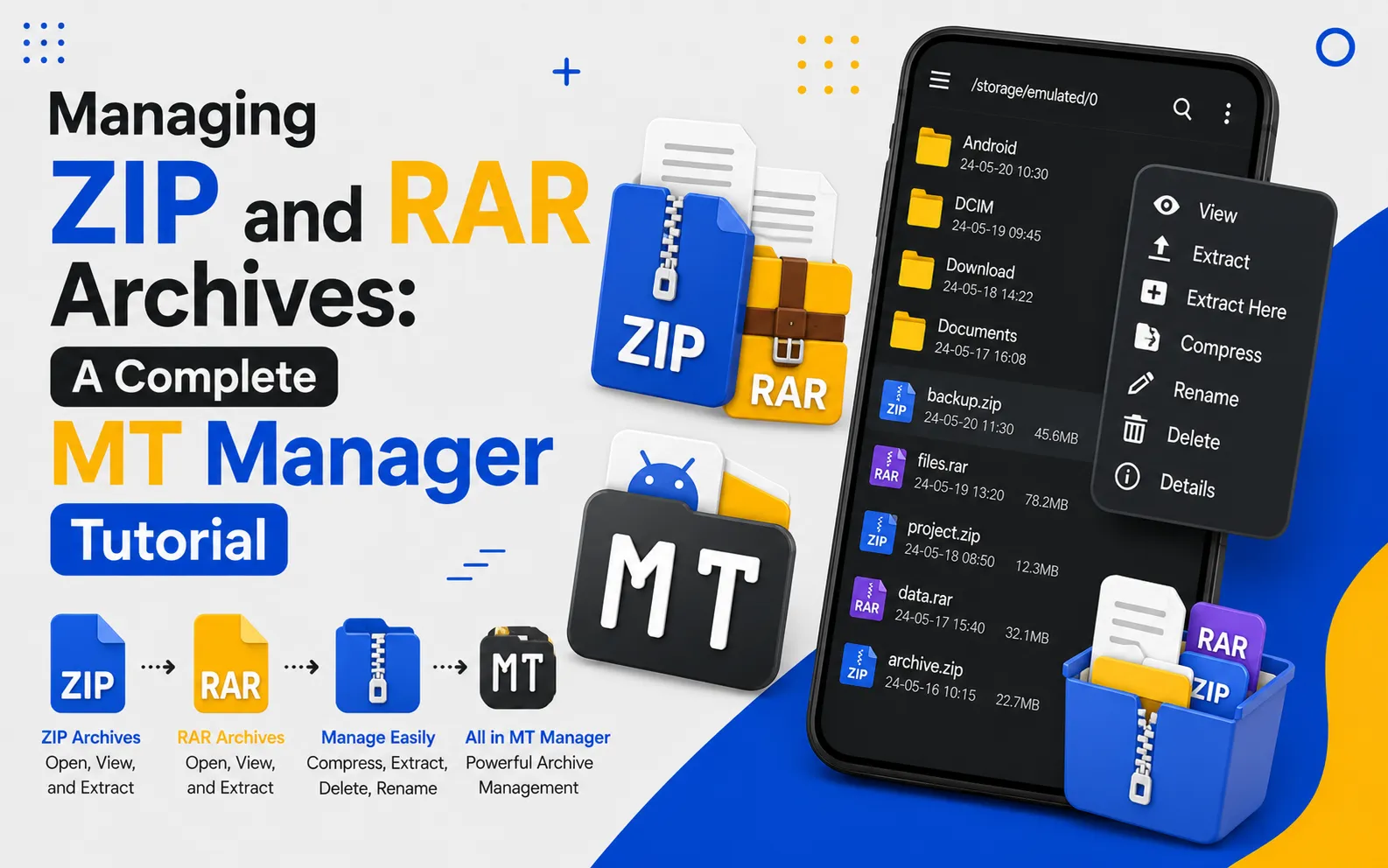
Managing ZIP and RAR Archives: A Complete MT Manager Tutorial
Compressed archives make it easier to store, organize, and share files without consuming unnecessary storage space. ZIP and RAR formats are widely used for APK files, documents, images, project folders, and backups because they reduce file size while keeping everything organized. MT Manager APK includes powerful archive management tools that let users browse, extract, create, and manage compressed files directly on Android devices.
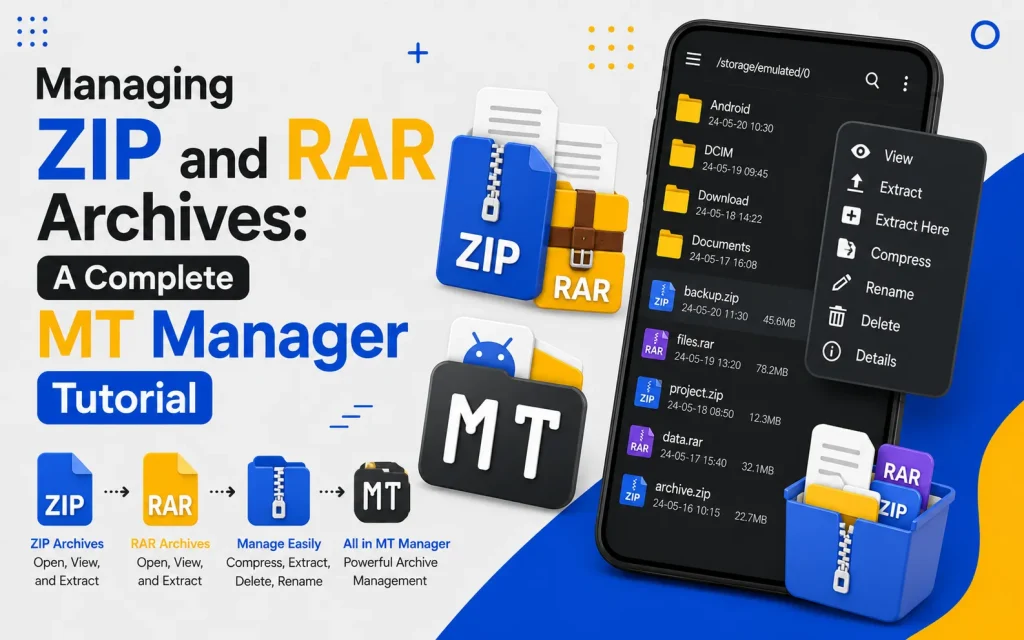
Instead of installing multiple applications for archive management, MT Manager combines file management and archive handling into one efficient interface. Its dual-panel layout makes moving files between folders and archives much faster. This tutorial explains everything you need to know about managing ZIP and RAR archives with MT Manager APK.
What Are ZIP and RAR Archives?
ZIP and RAR are compressed file formats designed to reduce storage size while grouping multiple files into a single package. They simplify file sharing by allowing users to transfer one archive instead of dozens of individual files. Compression also helps save storage space on mobile devices.
These archive formats are commonly used for application backups, project files, themes, documents, and media collections. Developers and Android users frequently download APK packages distributed as compressed archives. Learning how to manage these files makes everyday file handling much more efficient.
Quick Tip
Always verify the contents of an archive before extracting it, especially when working with downloaded files.
Why Use MT Manager for Archive Management?
MT Manager provides built-in tools for handling compressed archives without requiring separate software. Users can open ZIP and RAR files, browse their contents, extract selected files, and create new archives directly within the application. This saves time and keeps file management organized.
The dual-panel interface further improves productivity by allowing users to copy files between folders and archives. Multiple operations can be completed without repeatedly changing directories. This workflow closely resembles desktop file management.
Features for Managing ZIP and RAR Files
MT Manager offers several tools that simplify archive management on Android devices. These features improve organization while reducing unnecessary steps during file transfers. Both beginners and advanced users benefit from the streamlined workflow.
Key Archive Management Features
- Open ZIP archives
- Open RAR archives
- Extract selected files
- Extract complete archives
- Create ZIP archives
- Rename archive files
- Delete archive contents
- Dual-panel file management
- Batch file selection
- Fast archive browsing
Step 1: Open MT Manager
Launch MT Manager on your Android device and allow it to load your storage directories. The main interface displays internal storage, external storage, and available folders. From here, you can browse directly to your archive files.
Take a moment to understand the navigation layout before continuing. Familiarity with the interface improves workflow efficiency. The dual-panel design makes archive management easier throughout the process.
Step 2: Locate the ZIP or RAR Archive
Browse to the folder containing the compressed archive you want to manage. Archive files are commonly stored in the Downloads folder, project directories, or backup locations. Selecting the correct archive is the first step before performing any operation.
Confirm the archive name before opening it. This prevents accidental modification of the wrong file. Organized folder structures also make archives easier to locate.
Step 3: Open the Archive
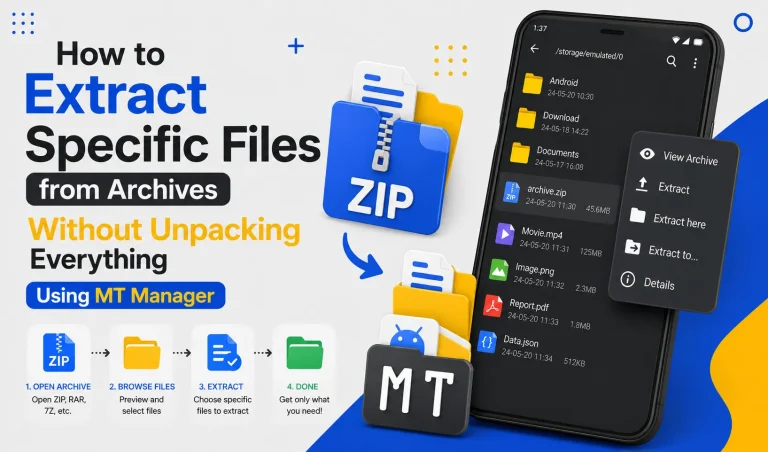
Tap the ZIP or RAR file to view its contents. MT Manager displays the folders and files stored inside the archive without requiring immediate extraction. This allows users to inspect everything before making changes.
Browsing archives directly saves both time and storage space. Users can decide which files they actually need. This is particularly useful when working with large compressed packages.
Step 4: Extract Files
Choose the files or folders you want to extract from the archive. You can extract individual items or unpack the entire archive depending on your requirements. The destination folder can be selected using the second panel.
Extraction usually completes quickly depending on archive size. Larger archives naturally require additional processing time. Keeping sufficient storage available improves overall performance.
Step 5: Copy Files Between Folders
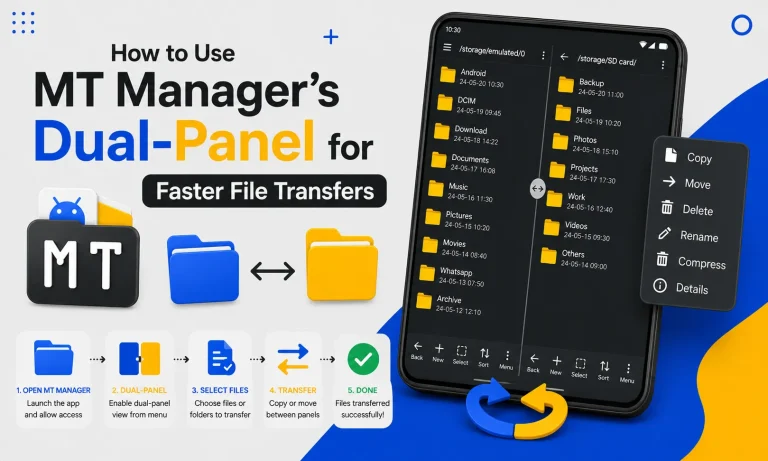
The dual-panel interface allows one panel to display the archive while the other shows the destination folder. This makes copying files much faster than repeatedly navigating between directories. Visual confirmation also reduces transfer mistakes.
Large file collections become easier to organize with side-by-side panels. Users can verify destinations before beginning transfers. The workflow remains simple even for beginners.
Step 6: Create a ZIP Archive
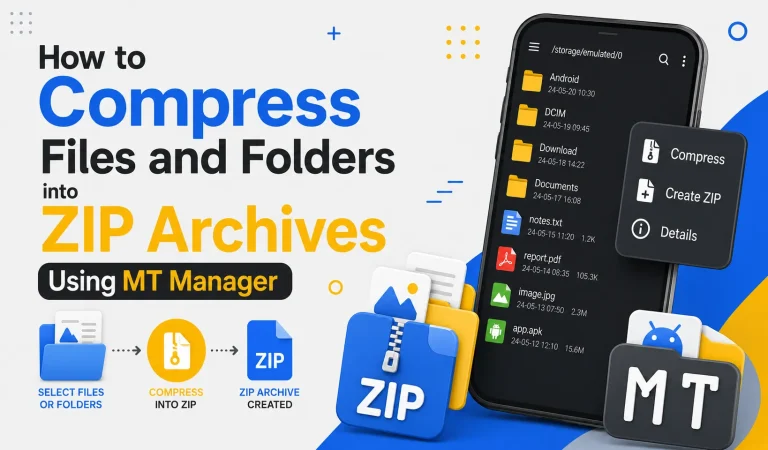
MT Manager also allows users to compress selected files into a new ZIP archive. Simply choose the desired files, select the compression option, and specify a filename. The application creates the archive within seconds.
Creating archives helps organize projects and reduce storage usage. It also simplifies file sharing by combining multiple files into one package. Organized archives improve long-term file management.
Step 7: Verify the Archive
After extracting or creating an archive, verify that every required file is present. Opening the archive again provides a quick way to confirm its contents. This simple review helps prevent missing or incomplete files.
Verification is especially important for backups and project folders. Confirming file integrity provides additional confidence before deleting original files. Careful checking reduces future problems.
Common Uses for ZIP and RAR Archives
Compressed archives are useful across many everyday Android tasks. They help organize files while reducing storage requirements. Proper archive management also improves productivity.
| Archive Type | Common Use |
|---|---|
| ZIP | Documents and backups |
| RAR | Large file collections |
| APK Packages | Application distribution |
| Project Files | Development projects |
| Media Archives | Photos and videos |
| Theme Files | Customization packages |
Organizing APK Collections
Many Android users keep multiple APK versions for testing or backup purposes. Compressing these files into ZIP archives keeps storage organized while reducing clutter. Categorized archives are also easier to search later.
Separate folders for stable releases, beta versions, and archived builds improve organization. Well-structured archives save time during future updates. Consistent naming conventions further improve accessibility.
Backing Up Important Files
Creating archive backups protects valuable documents and project files. Compressing folders also reduces storage consumption while preserving directory structures. Organized backups simplify future restoration.
Regular backups reduce the risk of accidental data loss. Archived copies remain easier to transfer between devices. Consistent backup habits improve long-term file security.
Managing Downloaded Files
Downloads often contain compressed archives that include multiple files. Browsing these archives before extraction helps users avoid unnecessary storage usage. Extracting only the required files keeps devices organized.
Removing unused archives after successful extraction also saves storage space. Organized download folders remain easier to manage over time. Routine cleanup improves overall device performance.
Tips for Better Archive Management
Developing good archive management habits improves organization and productivity. Simple maintenance prevents unnecessary storage problems. Consistency makes file management easier in the long run.
Best Practices
- Create backups before editing archives.
- Keep archive names descriptive.
- Organize archives into dedicated folders.
- Delete duplicate compressed files.
- Verify archive contents after extraction.
- Maintain sufficient free storage.
- Review backups regularly.
ZIP vs RAR Comparison
| Feature | ZIP | RAR |
|---|---|---|
| Compatibility | Excellent | Very Good |
| Compression Speed | Fast | Moderate |
| Compression Ratio | Good | Better for some files |
| Android Support | Wide | Wide |
| File Sharing | Common | Common |
| Backup Usage | Excellent | Excellent |
Common Mistakes to Avoid
Extracting archives into the wrong folder often creates unnecessary confusion. Always confirm the destination before starting the extraction process. Careful verification keeps storage organized.
Another mistake is deleting the original archive before confirming successful extraction. Keeping the archive until verification provides additional protection. This simple habit prevents accidental data loss.
Frequently Asked Questions
Can MT Manager open ZIP files?
Yes, MT Manager supports browsing and managing ZIP archives directly. Users can view, extract, and organize files without additional software. The built-in tools simplify the entire process.
Does MT Manager support RAR archives?
Yes, RAR archives can also be opened and managed within the application. Users can browse archive contents before extracting files. This improves workflow efficiency.
Can I create ZIP archives?
Yes, MT Manager allows users to compress selected files into new ZIP archives. This helps reduce storage usage and organize projects. Archive creation is quick and straightforward.
Is archive extraction safe?
Yes, when working with trusted files and creating backups beforehand. Verifying extracted files also improves reliability. Safe file management practices are always recommended.
Why should I use dual-panel mode?
Dual-panel mode keeps the archive and destination folder visible simultaneously. This reduces navigation while improving transfer accuracy. The workflow becomes much faster and more organized.
Final Verdict
Managing ZIP and RAR archives becomes simple when you have the right tools for the job. With its built-in archive browser, extraction tools, compression features, and dual-panel interface, MT Manager APK provides an efficient solution for organizing compressed files on Android. Whether you are handling APK packages, project folders, backups, or media collections, mastering archive management will help you work faster while keeping your files organized.