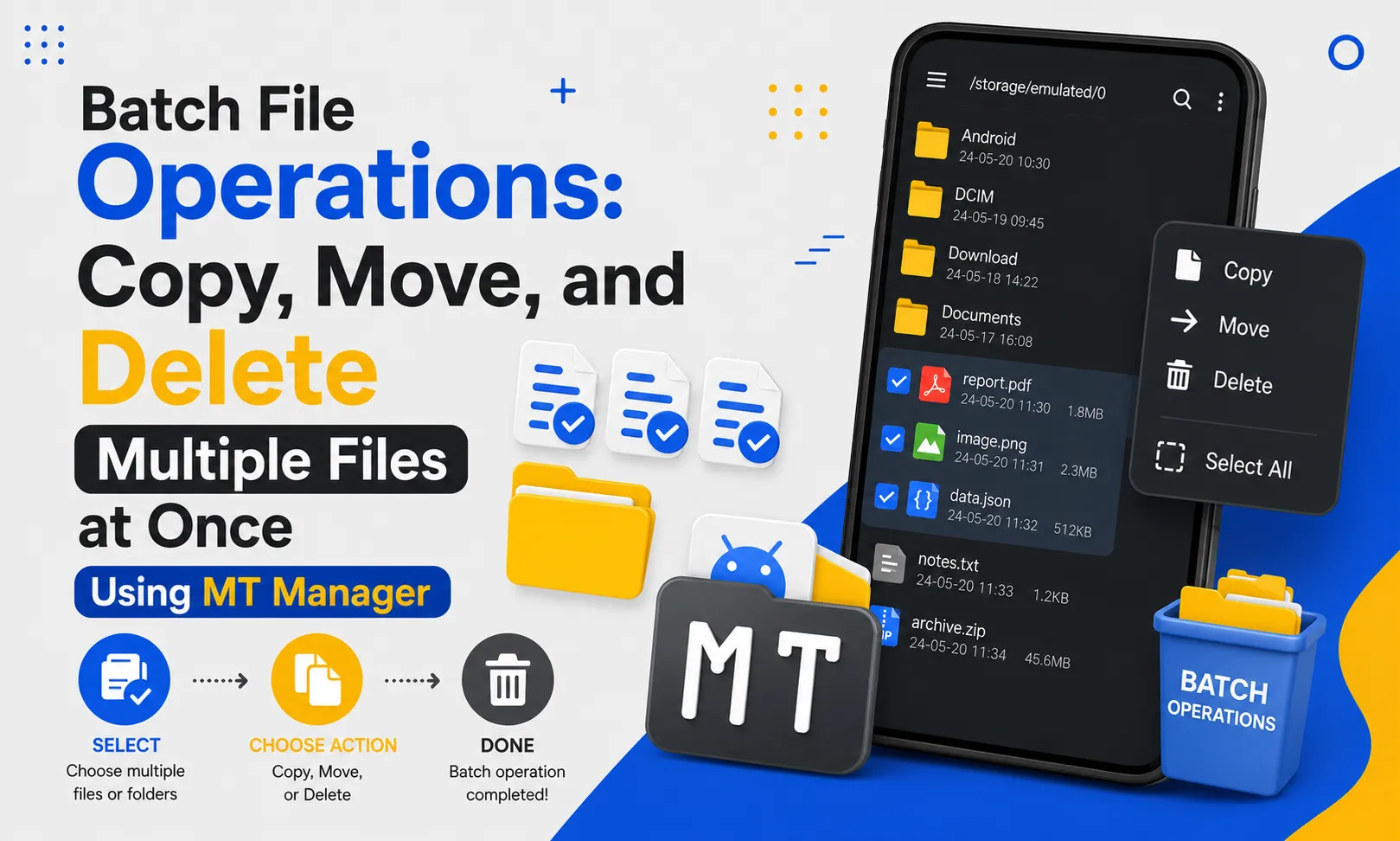
Batch File Operations: Copy, Move, and Delete Multiple Files at Once
Managing dozens or even hundreds of files individually can be time-consuming and frustrating. Whether you’re organizing APK files, cleaning up downloads, or creating backups, performing actions one file at a time slows your workflow. MT Manager APK simplifies this process with powerful batch file operations that let you copy, move, rename, and delete multiple files simultaneously.
Instead of repeating the same action over and over, batch operations help you complete large file management tasks in just a few taps. This feature is especially useful for Android users who regularly work with documents, images, videos, ZIP archives, and application files. In this guide, you’ll learn how to use MT Manager APK to perform batch file operations efficiently.
What Are Batch File Operations?
Batch file operations allow users to select multiple files and perform the same action on all of them at once. Rather than managing each file separately, the selected files are processed together. This approach saves time while improving productivity.
Batch operations are common in professional file management software because they simplify repetitive tasks. Android users can enjoy the same convenience through MT Manager. Large folders become much easier to organize with just a few taps.
Quick Tip
Before performing any batch operation, double-check your selected files to avoid accidentally moving or deleting important data.
Why Use Batch File Operations?
Managing files individually becomes inefficient as storage grows larger. Batch operations reduce repetitive work by allowing multiple files to be handled in one action. This creates a faster and more organized workflow.
The feature is useful for both personal and professional file management. Students, developers, photographers, and content creators regularly work with large file collections. Batch processing helps complete these tasks much more efficiently.
Benefits of Batch File Management
Batch operations improve speed while reducing manual effort. Instead of repeating the same action multiple times, users complete file management with fewer taps. This leads to better organization and fewer mistakes.
The feature also improves consistency across large folders. Every selected file receives the same action at the same time. This makes storage management much easier.
Key Benefits
- Save valuable time
- Reduce repetitive work
- Organize files faster
- Improve productivity
- Simplify large transfers
- Minimize navigation
- Better storage management
- Easier backup creation
Batch Operations Supported in MT Manager
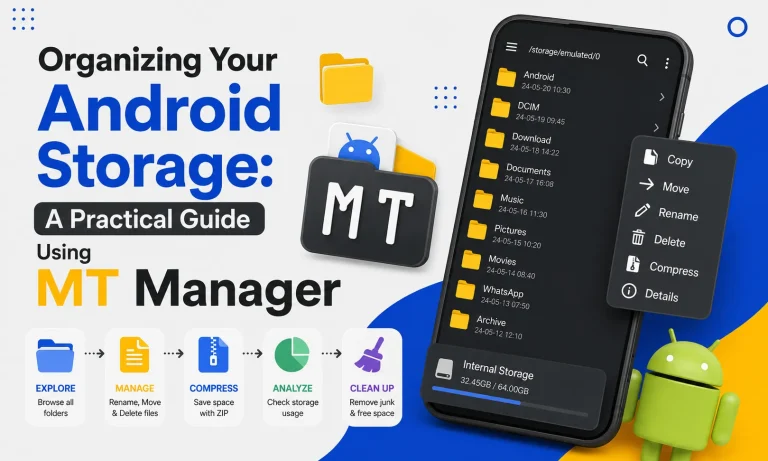
MT Manager supports several important batch file management functions. These tools cover the most common file organization tasks performed on Android devices. Together, they create a complete file management solution.
Available Batch Operations
- Copy multiple files
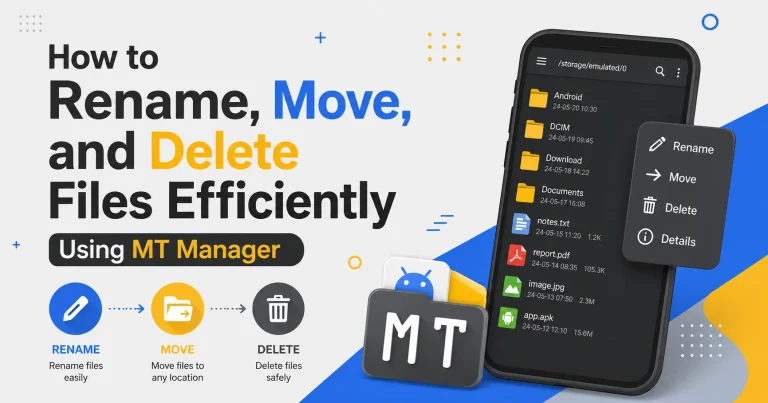
- Move multiple files
- Delete selected files
- Rename multiple files
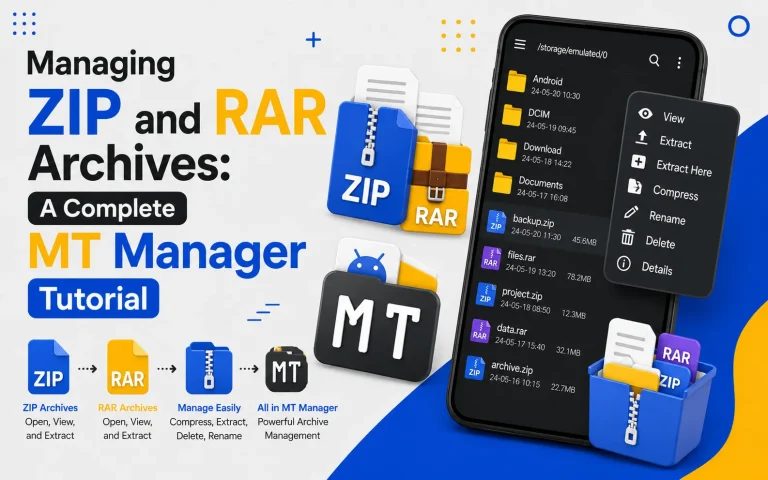
- Compress selected files
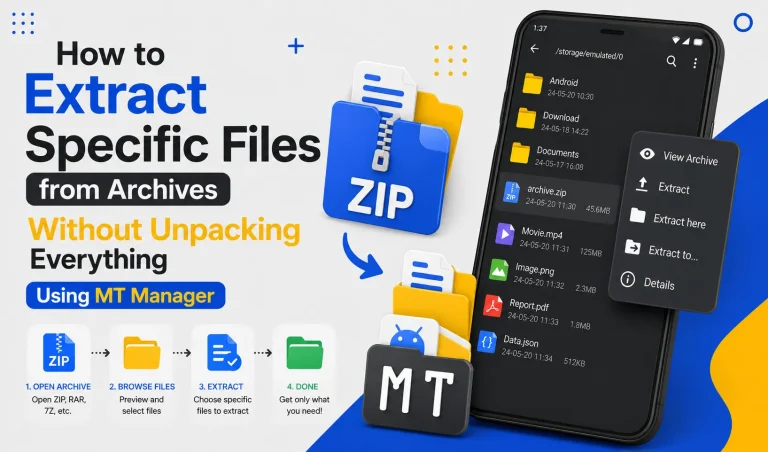
- Extract archive contents
- Share multiple files
- Organize folders quickly
Step 1: Open MT Manager
Launch MT Manager from your Android device and allow it to load your storage directories. The home screen displays your internal storage, SD card, and available folders. From here, you can begin managing your files.
Spend a few moments becoming familiar with the interface if you are a new user. Understanding the layout improves workflow efficiency. The dual-panel interface also makes navigation easier.
Step 2: Navigate to the Folder
Browse to the folder containing the files you want to manage. This may include downloads, images, APK files, videos, or project folders. Selecting the correct directory is the first step toward successful batch processing.
Verify that all required files are present before making your selection. Organized folders make batch operations much easier. Careful preparation saves time later.
Step 3: Select Multiple Files
Use the multi-selection feature to choose every file you want to manage. MT Manager allows users to select individual files or entire groups depending on their needs. Batch selection significantly reduces repetitive work.
Review the highlighted items before continuing. Confirming your selection prevents accidental file operations. This simple habit improves accuracy.
Step 4: Copy Multiple Files
Choose the Copy option after selecting the desired files. Open the destination folder using the second panel and begin the transfer. The selected files will be duplicated while leaving the originals unchanged.
Copying is useful when creating backups or sharing files across different folders. Keeping the original files provides additional security. This method is recommended for important documents.
Step 5: Move Multiple Files
If you want to relocate files instead of duplicating them, choose the Move option. The selected files will be transferred to the new folder and removed from their original location. This helps organize storage more efficiently.
Moving files is ideal for cleaning download folders or sorting media collections. The dual-panel interface makes choosing the destination much easier. Both folders remain visible throughout the process.
Step 6: Delete Unwanted Files
Batch deletion allows users to remove unnecessary files in one operation. Select the unwanted items and confirm the delete command. This helps free storage space quickly.
Always review your selection before confirming deletion. Removing important files accidentally can create unnecessary problems. Careful verification is highly recommended.
Step 7: Verify the Results
After completing any batch operation, review the destination or original folder. Confirm that every selected file has been copied, moved, or deleted correctly. Verification ensures successful file management.
Checking the results only takes a few seconds. This habit reduces mistakes during large operations. Organized storage becomes much easier to maintain.
Common Uses for Batch Operations
Batch processing is useful in many everyday situations. Whether organizing media files or maintaining application backups, the feature saves considerable time. Android users benefit from a faster workflow.
| Task | Benefit |
|---|---|
| Organize Downloads | Faster cleanup |
| Move APK Files | Better organization |
| Backup Documents | Quick duplication |
| Delete Duplicate Files | Save storage space |
| Transfer Photos | Easy album management |
| Manage Videos | Faster sorting |
Organizing APK Files
Android enthusiasts often maintain several APK versions for testing or backup purposes. Batch operations make it easy to move multiple APK files into categorized folders. Organized collections simplify future updates.
Keeping application files grouped by version improves accessibility. Archived installers remain easy to locate when required. Good organization also reduces storage clutter.
Cleaning Download Folders
Download folders quickly become crowded with documents, archives, and application files. Batch deletion removes unnecessary files while batch moving organizes important ones. Regular cleanup improves device organization.
Removing outdated downloads also frees valuable storage space. Well-maintained folders are easier to search. Good storage habits improve long-term performance.
Managing Photos and Videos
Media libraries often contain hundreds of files collected over time. Batch operations simplify moving photos into albums and videos into categorized folders. Organizing media becomes much faster.
Family memories, travel pictures, and project files remain easier to locate after organization. Consistent folder structures improve long-term management. Large media collections become less overwhelming.
Creating File Backups
Batch copying is one of the easiest ways to create backups of important files. Entire folders can be duplicated without copying each file individually. This protects valuable information against accidental loss.
Regular backups improve data security. Organized backup folders also simplify future restoration. Good backup habits are always recommended.
Tips for Efficient Batch Operations
Developing a consistent workflow improves both speed and accuracy. Small organizational habits produce noticeable productivity improvements. Efficient file management saves time every day.
Best Practices
- Create backups before deleting files.
- Organize folders by category.
- Verify selected files before processing.
- Delete duplicate files regularly.
- Keep sufficient storage available.
- Use descriptive folder names.
- Review completed operations.
Batch Operations vs Individual File Management
| Feature | Batch Operations | Individual Management |
|---|---|---|
| Speed | Very Fast | Slow |
| Productivity | High | Moderate |
| File Selection | Multiple Files | One File |
| Folder Organization | Efficient | Time-Consuming |
| Large Transfers | Excellent | Limited |
| User Effort | Minimal | Repetitive |
Common Mistakes to Avoid
Selecting incorrect files before performing a batch action is one of the most common mistakes. Always review your selection carefully before confirming any operation. A few extra seconds can prevent accidental file loss.
Another mistake is deleting files without maintaining a backup. Important documents should always be copied before removal. Safe file management practices protect valuable data.
Frequently Asked Questions
Can I copy multiple files at once?
Yes, MT Manager allows users to select and copy multiple files simultaneously. Batch copying significantly reduces repetitive work. It is ideal for creating backups and organizing folders.
Is batch deletion permanent?
Deleted files may not always be recoverable depending on your device and storage configuration. Always verify your selection before confirming deletion. Creating backups is recommended for important data.
Can I move entire folders?
Yes, folders can also be moved using MT Manager. This simplifies storage organization and project management. Large directory structures remain intact during the transfer.
Does batch processing improve productivity?
Yes, performing one action on multiple files saves considerable time. Fewer taps and less navigation create a more efficient workflow. Large file collections become easier to manage.
Is batch file management suitable for beginners?
Yes, MT Manager provides a simple interface that makes batch operations easy to learn. New users can quickly become comfortable with the workflow. The organized layout reduces confusion during file management.
Final Verdict
Batch file operations are one of the most useful productivity features available in MT Manager for Android users. By allowing multiple files to be copied, moved, deleted, or organized simultaneously, the application eliminates repetitive work and makes storage management significantly more efficient. Whether you are organizing APK files, creating backups, cleaning download folders, or managing large media collections, MT Manager APK provides a fast, reliable, and user-friendly solution for handling multiple files at once.