Using MT Manager to View and Edit JSON Files on Android
JSON files are widely used in Android applications, web development, APIs, and software configuration because they store structured data in a lightweight and easy-to-read format. Many developers, Android enthusiasts, and advanced users work with JSON files when modifying app settings, reviewing configuration data, or learning how applications organize information. MT Manager APK includes a powerful built-in text editor that allows users to open, view, and edit JSON files directly on their Android devices.
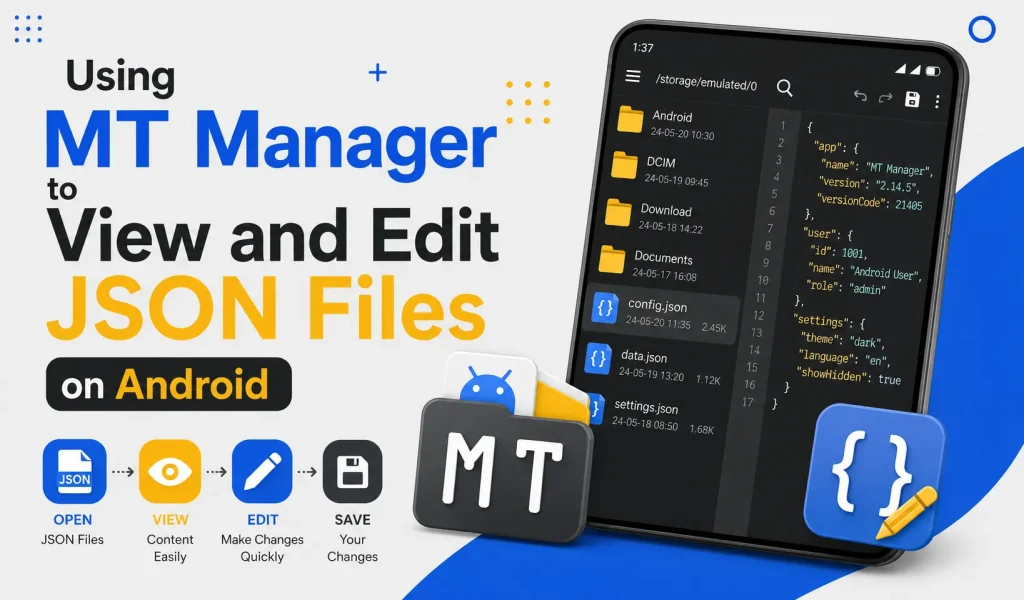
Instead of transferring files to a computer, MT Manager lets you manage JSON documents from your smartphone using a clean interface and advanced editing tools. Features like syntax highlighting, dual-panel navigation, and file management simplify the editing process. This guide explains how to safely view and edit JSON files using MT Manager APK.
What Is a JSON File?
JSON stands for JavaScript Object Notation, which is a lightweight format used to organize and exchange structured data. It stores information as key-value pairs and arrays, making it easy for both humans and software to read. Many Android applications use JSON files for settings, configuration data, and application resources.
Developers also rely on JSON because it is simple, organized, and widely supported. Many websites and APIs exchange information using this format. Learning to read JSON files helps users better understand how modern applications work.
Quick Tip
Always create a backup of a JSON file before making any changes so you can restore the original version if needed.
Why View and Edit JSON Files?
JSON files often contain configuration settings, preferences, and structured application data. Viewing these files helps developers understand application behavior and troubleshoot configuration issues. Editing them can also assist during testing and development projects.
Learning JSON improves technical knowledge for Android development and software customization. Even beginners can understand the basic structure with regular practice. Familiarity with JSON is useful across many programming environments.
Why Use MT Manager for JSON Editing?
MT Manager combines advanced file management with a built-in code editor that supports structured text files. Users can browse folders, locate JSON files, and edit them without installing additional applications. Everything is available in one convenient interface.
The editor presents JSON content in a readable format with syntax highlighting. Organized colors make keys, values, and punctuation easier to distinguish. This reduces editing mistakes and improves productivity.
Features That Help with JSON Editing
MT Manager includes several useful tools for working with JSON files. These features make editing more comfortable while improving navigation through larger documents. Both beginners and experienced users benefit from the organized interface.
Key Features
- Built-in JSON editor
- Syntax highlighting
- Dual-panel file management
- Fast file search
- Copy and paste support
- Text replacement tools
- Quick file saving
- Easy navigation
Understanding JSON Structure
JSON files follow a simple and organized structure. Data is stored using objects, arrays, keys, and values that work together to represent information. Understanding this layout makes editing much easier.
| JSON Element | Purpose |
|---|---|
Object {} | Stores grouped data |
Array [] | Holds multiple values |
| Key | Identifies data |
| Value | Stores information |
| String | Text value |
| Number | Numeric value |
Step 1: Open MT Manager
Launch MT Manager on your Android device and wait for it to load your available storage directories. The home screen displays your internal storage, SD card, and accessible folders. From here, you can begin locating the required JSON file.
Spend a few moments exploring the interface if you are new to the application. Understanding the navigation saves time during editing. The dual-panel layout also improves file management.
Step 2: Locate the JSON File
Browse to the folder containing the JSON file you want to view or edit. JSON files may appear inside application directories, project folders, backups, or downloaded resources. Selecting the correct file is an important first step.
Verify the filename before opening it. Working with the wrong file may create unnecessary confusion. Organized folders simplify navigation.
Step 3: Open the JSON File
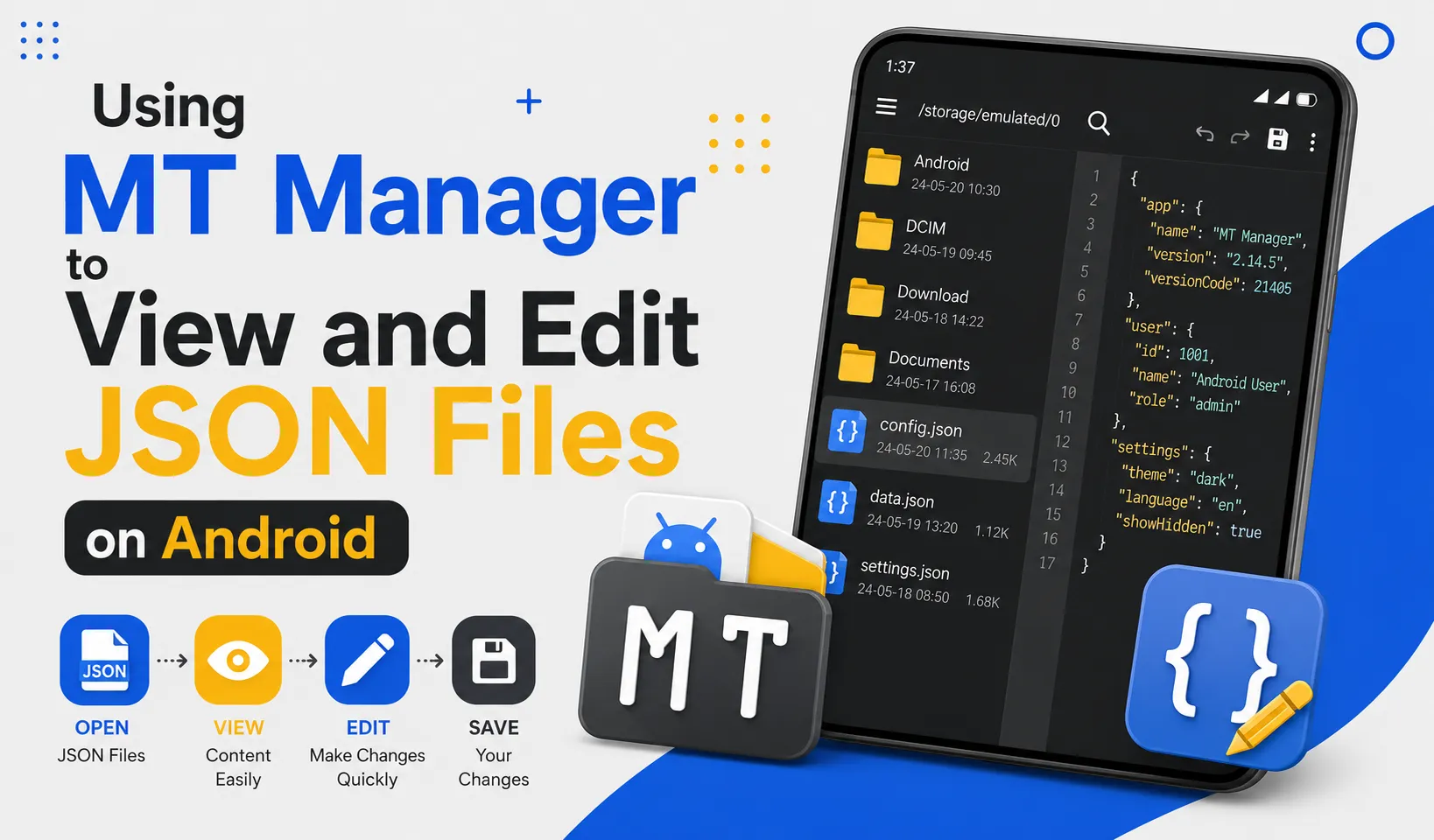
Tap the JSON file to launch MT Manager’s built-in editor. The application displays the structured data in a readable format with syntax highlighting. This makes it easier to understand the document.
Keys, values, brackets, and punctuation remain clearly organized throughout the file. Large documents become easier to review because of the improved readability. The editor helps reduce common formatting mistakes.
Step 4: Review the File Structure
Before making any modifications, carefully examine the JSON structure. Observe how objects, arrays, and key-value pairs are organized throughout the document. Understanding the layout helps prevent editing errors.
Small formatting mistakes can affect the entire file. Reviewing the structure before editing improves accuracy. Taking your time leads to better results.
Step 5: Edit the Required Values
Locate the specific values that need modification and make your changes carefully. Avoid changing unrelated sections unless absolutely necessary. Small edits are easier to review and troubleshoot later.
Maintain the existing JSON structure while editing. Proper punctuation and formatting are essential for valid JSON files. Careful editing reduces the chance of errors.
Step 6: Save the File
After completing your changes, save the JSON file using the editor’s save option. Confirm that the file has been written successfully before closing the editor. Saving regularly also helps prevent accidental data loss.
Review your modifications immediately after saving. A quick inspection helps identify overlooked mistakes. Consistent verification improves editing accuracy.
Step 7: Verify Your Changes
Open the JSON file again or test the related project to confirm that your changes work correctly. Verification ensures that the file remains properly formatted after editing. Early testing simplifies troubleshooting if problems occur.
Compare the edited version with your backup whenever necessary. Small corrections are easier to make than large revisions. Careful testing leads to more reliable results.
Common Uses of JSON Files
JSON is used across many types of Android and software projects. Understanding its common applications helps users appreciate its importance. The format remains one of the most widely adopted data structures.
| Use Case | Description |
|---|---|
| App Configuration | Stores application settings |
| API Responses | Exchanges web data |
| User Preferences | Saves configuration values |
| Development Projects | Stores structured information |
| Backup Files | Preserves application data |
| Software Testing | Supports development workflows |
Best Practices for JSON Editing
Developing good editing habits reduces mistakes while improving productivity. Organized workflows make future maintenance much easier. Careful preparation saves valuable time.
Recommended Practices
- Create backups before editing.
- Modify only necessary values.
- Keep formatting consistent.
- Save changes frequently.
- Review every modification.
- Test after editing.
- Organize project files properly.
Common Mistakes to Avoid
Removing brackets, quotation marks, or commas accidentally can make a JSON file invalid. Always review the document after making changes. Careful formatting is essential for successful editing.
Another common mistake is editing multiple sections at the same time. Making smaller changes simplifies troubleshooting if problems occur. Incremental editing improves reliability.
Benefits of Learning JSON
Understanding JSON improves your knowledge of Android applications and software development. It also helps when working with APIs, configuration files, and project resources. These skills remain valuable across many technical fields.
Learning JSON builds confidence while improving problem-solving abilities. Regular practice makes the structure easier to understand. Experience gradually increases editing accuracy.
Frequently Asked Questions
Is JSON difficult to learn?
No, JSON uses a simple and organized structure that is easy to understand with practice. Most beginners learn the basics quickly. Regular exposure improves familiarity.
Can MT Manager edit JSON files directly?
Yes, MT Manager includes a built-in editor that supports JSON files. Users can view, edit, and save structured data without additional software. The process is straightforward.
Should I back up JSON files before editing?
Yes, creating a backup is always recommended before making changes. A backup allows you to restore the original file if necessary. This is one of the safest editing practices.
Why is syntax highlighting useful?
Syntax highlighting improves readability by separating different elements using colors. Keys, values, and punctuation become easier to identify. This reduces editing mistakes.
Is MT Manager suitable for beginners?
Yes, its organized interface and built-in editor make JSON editing much easier to learn. Beginners can gradually understand the file structure through regular practice. The application provides an efficient editing environment.
Final Verdict
Viewing and editing JSON files on Android becomes much simpler when you have the right tools. With its built-in editor, syntax highlighting, dual-panel interface, and advanced file management features, MT Manager APK provides an efficient solution for working with structured data files. Whether you are learning Android development, reviewing configuration files, or managing project resources, mastering JSON editing will improve your technical skills and overall productivity.