Organizing Your Android Storage: A Practical Guide Using MT Manager
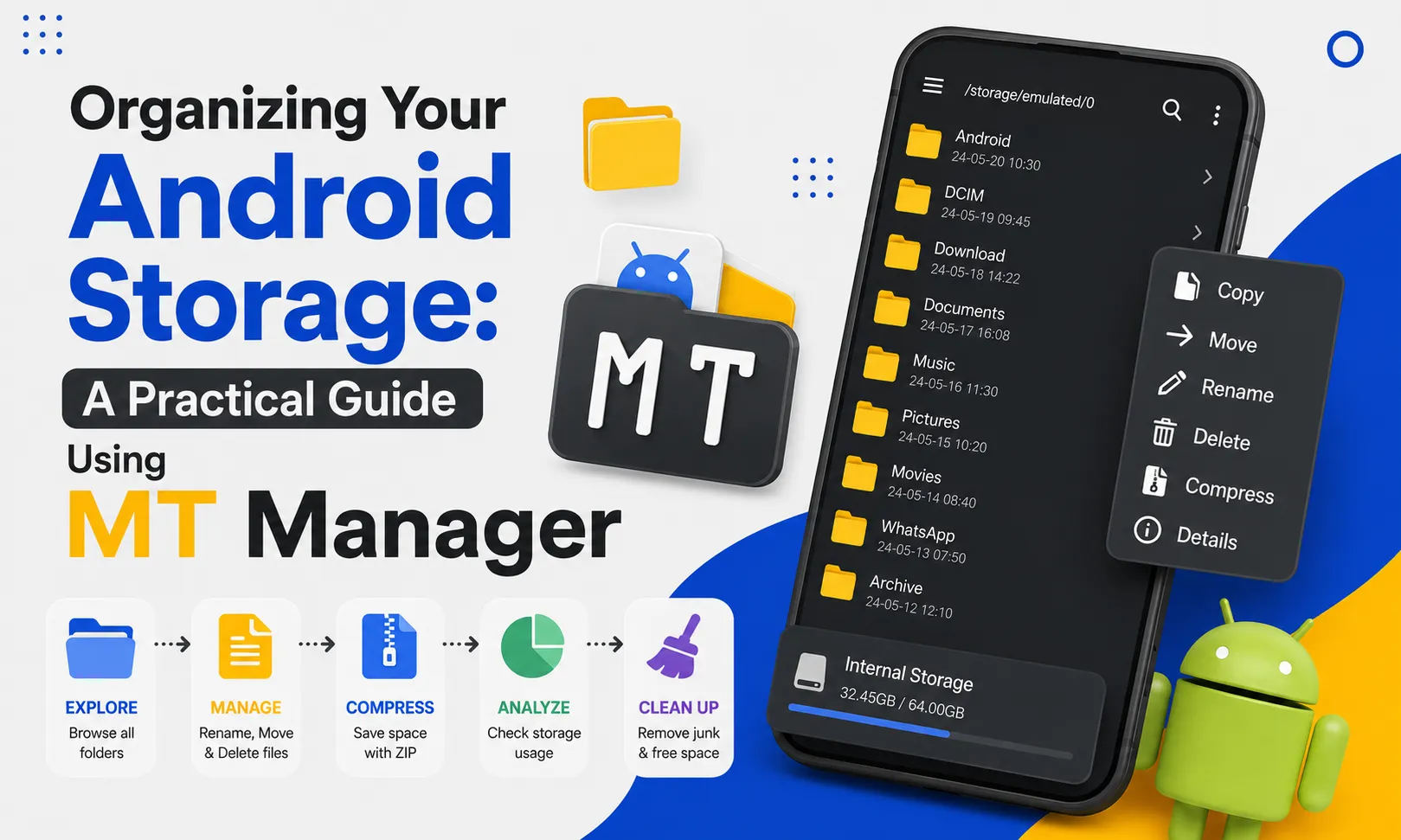
A cluttered Android storage can slow down your workflow, make files difficult to find, and consume valuable space. Over time, downloaded files, APKs, images, videos, documents, and temporary files accumulate across multiple folders, creating unnecessary confusion. MT Manager APK provides powerful file management tools that help you organize your Android storage efficiently while improving productivity.
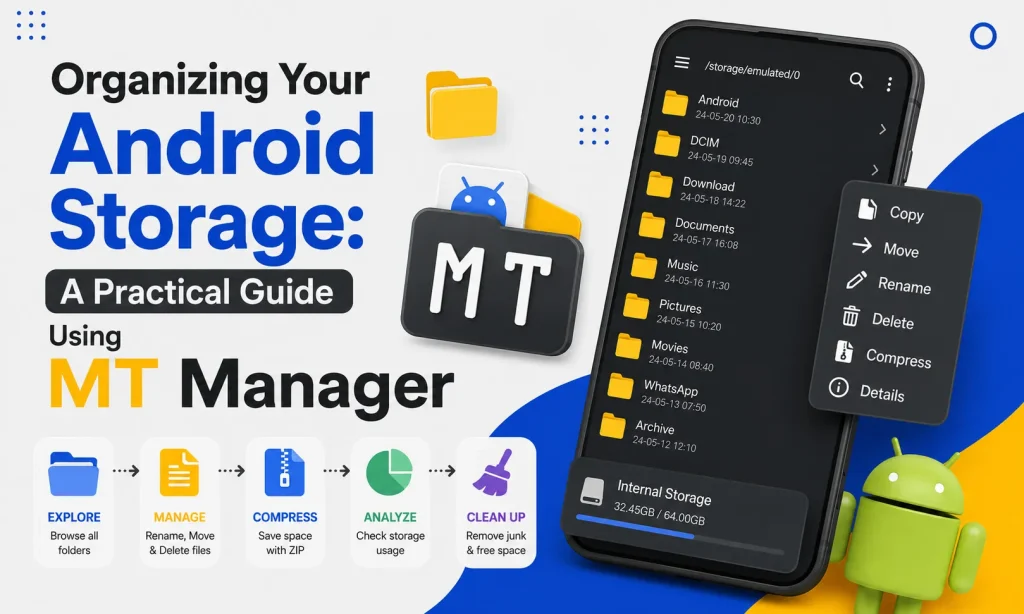
Instead of manually searching through dozens of folders, MT Manager allows you to manage files using its dual-panel interface, batch operations, archive management, and advanced file tools. Keeping your storage organized also makes backups, file transfers, and app management much easier. This guide explains practical methods for organizing Android storage with MT Manager APK.
Why Organizing Android Storage Is Important
As your device stores more files, finding important documents and media becomes increasingly difficult. Unorganized storage also wastes space because duplicate files and unnecessary downloads remain hidden inside different folders. Maintaining a clean storage structure improves both efficiency and device performance.
Organized folders reduce the time spent searching for files. They also make future backups much easier to manage. Good file organization becomes even more valuable as your storage grows.
Quick Tip
Spend a few minutes organizing your storage every week to prevent folders from becoming overcrowded.
Common Causes of Storage Clutter
Most Android users download files without organizing them immediately. Images, APK files, videos, PDFs, ZIP archives, and screenshots quickly accumulate inside default folders. Over time, these files become difficult to manage.
Unused application data also contributes to storage clutter. Temporary files, duplicate downloads, and outdated backups occupy valuable space. Regular maintenance helps prevent unnecessary storage problems.
Benefits of Organized Storage
Keeping Android storage organized offers several long-term advantages. It improves productivity while making everyday file management much simpler. Users also spend less time searching for important files.
An organized storage structure helps maintain cleaner backups and reduces duplicate content. Applications become easier to manage when related files stay together. Good organization creates a smoother user experience.
Key Benefits
- Find files faster
- Save storage space
- Reduce duplicate files
- Simplify backups
- Improve productivity
- Better folder organization
- Easier APK management
- Faster file transfers
Why Use MT Manager?
MT Manager combines advanced file management features into one easy-to-use application. Users can browse folders, organize files, move large collections, compress archives, and manage storage using a desktop-style dual-panel interface. This significantly reduces unnecessary navigation.
The application also supports batch operations that save valuable time. Instead of handling files individually, users can organize multiple files at once. This makes large storage cleanups much more efficient.
Understanding Android Storage Structure
Android organizes files into different directories depending on their purpose. Learning this structure makes file management much easier. Users can quickly locate documents, downloads, media, and application data.
| Folder | Common Contents |
|---|---|
| Downloads | Downloaded files |
| Pictures | Photos and screenshots |
| DCIM | Camera images |
| Movies | Video recordings |
| Music | Audio files |
| Documents | PDFs and office files |
| APK Folder | Application installers |
| Backups | Saved copies of important files |
Step 1: Review Your Current Storage
Begin by examining your existing folder structure. Identify where your downloaded files, documents, media, and APK files are currently stored. Understanding your storage layout helps you create a better organization plan.
Pay attention to folders that contain large numbers of unrelated files. These areas usually require the most cleanup. Identifying clutter early saves time later.
Step 2: Create Organized Folders
Create separate folders for different file categories. Keeping documents, images, APKs, videos, and backups in dedicated locations improves accessibility. Clear folder names also simplify navigation.
Avoid storing unrelated files together. Organized categories make searching much faster. Consistency is important for long-term storage management.
Step 3: Sort Downloaded Files
The Downloads folder often becomes the most cluttered location on Android devices. Move documents, APK files, images, and archives into their proper folders after downloading them. This keeps the Downloads folder clean.
Regular sorting prevents unnecessary accumulation. Important files remain easy to locate. Organized downloads improve productivity.
Step 4: Organize APK Files
Many Android users keep multiple APK installers for backup or testing. Create dedicated folders for stable versions, beta releases, and archived installers. Well-organized APK collections simplify updates and future installations.
Removing outdated installers also saves storage space. Categorized folders improve accessibility. Organized APK management reduces confusion.
Step 5: Remove Duplicate Files
Duplicate images, videos, documents, and downloads consume valuable storage space. Review your folders regularly and remove unnecessary copies. This simple task helps maintain cleaner storage.
Duplicate files also make searching more difficult. Eliminating them improves organization significantly. Smaller storage collections are easier to manage.
Step 6: Use Batch File Operations
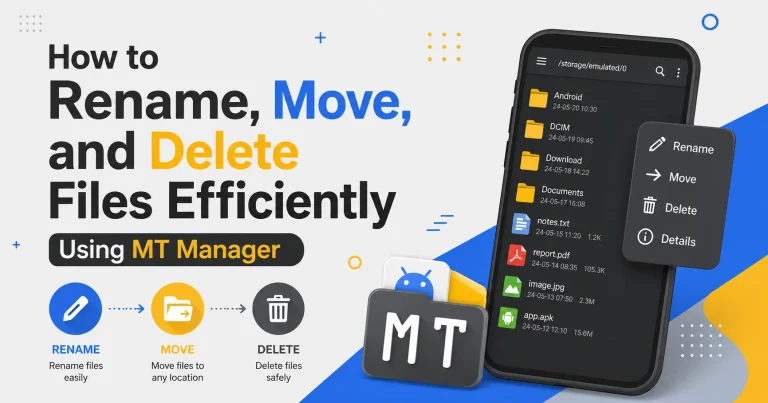
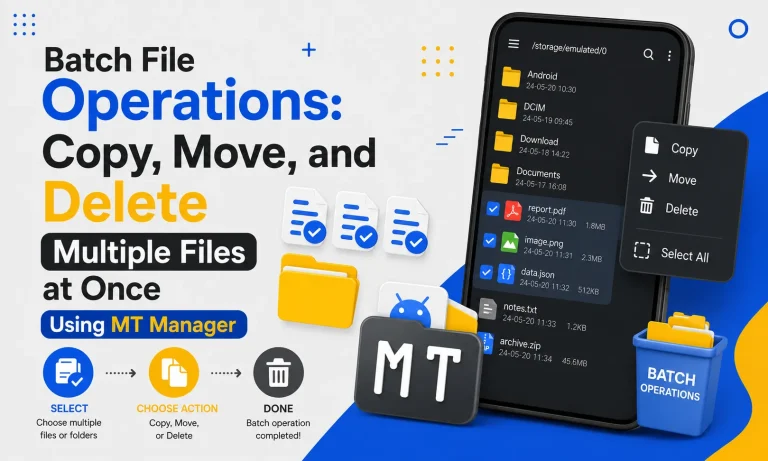
MT Manager allows users to copy, move, rename, and delete multiple files simultaneously. Batch operations save considerable time during large cleanup sessions. Organizing hundreds of files becomes much easier.
Instead of repeating the same action individually, process multiple files together. This improves both speed and accuracy. Batch management is one of MT Manager’s most useful productivity features.
Step 7: Take Advantage of Dual-Panel Mode
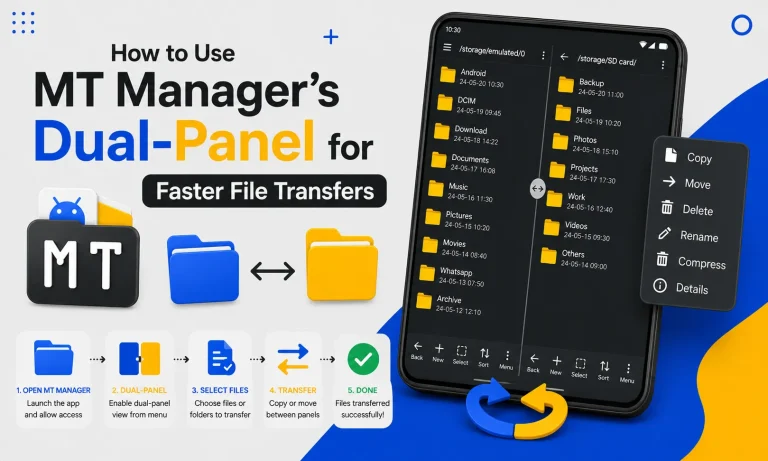
The dual-panel interface displays two folders at the same time. One panel can show the source folder while the other displays the destination folder. This reduces unnecessary navigation during file transfers.
Moving files becomes faster because both locations remain visible. Users can verify destinations before completing transfers. The desktop-style workflow improves overall efficiency.
Step 8: Compress Large File Collections
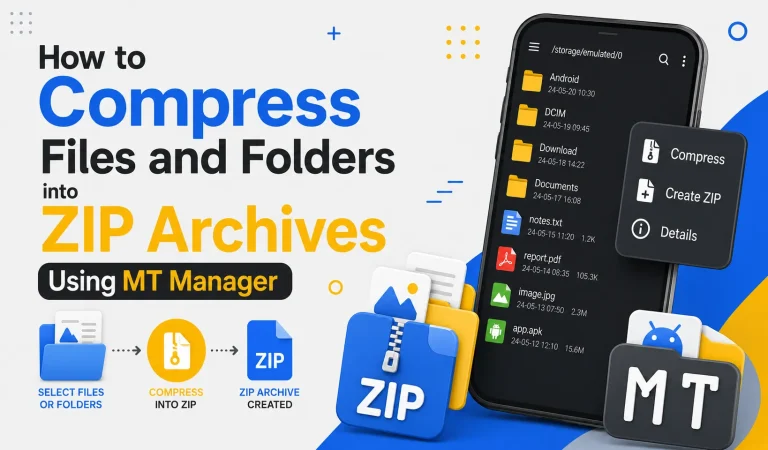
Older projects, documents, and backups can be compressed into ZIP archives to save storage space. MT Manager makes creating compressed archives quick and straightforward. Organized archives also simplify file sharing.
Archive related files together instead of storing them separately. This reduces folder clutter while improving organization. Compressed backups are also easier to transfer.
Step 9: Organize Photos and Videos
Photos and videos quickly become the largest category of stored files. Separate personal images, work media, screenshots, and downloaded content into different folders. Organized albums simplify future searching.
Delete blurry photos and duplicate videos whenever possible. Smaller media libraries remain easier to maintain. Regular cleanup also saves storage space.
Step 10: Back Up Important Files
Always maintain backups of important documents, projects, and APK collections before performing major storage cleanups. Backups protect valuable information from accidental deletion. Organized backup folders also simplify future recovery.
Store backups separately from your everyday files. This reduces accidental modification. Regular backups improve long-term data security.
Practical Folder Organization Example
Creating a simple folder structure improves navigation and reduces clutter. Grouping related files together also simplifies future maintenance. Consistency is more important than complexity.
| Folder | Contents |
|---|---|
| APKs | Application installers |
| Documents | PDFs and office files |
| Photos | Personal images |
| Videos | Movies and recordings |
| Downloads | Temporary downloads |
| Backups | Important copies |
| Projects | Development files |
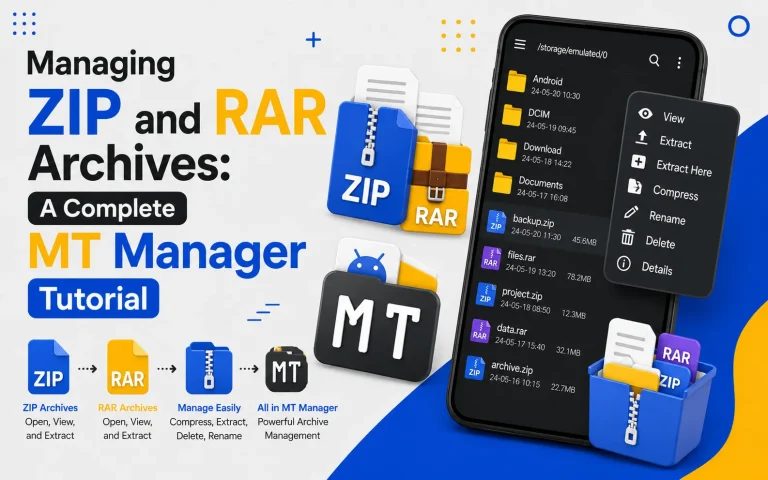
| Archives | ZIP and RAR files |
Best Practices for Storage Management
Developing good organizational habits keeps Android storage clean over time. Small maintenance tasks prevent major cleanup sessions later. Consistency creates long-term efficiency.
Recommended Practices
- Organize downloads weekly.
- Delete duplicate files regularly.
- Keep backups updated.
- Compress old projects.
- Use descriptive folder names.
- Separate personal and work files.
- Review storage every month.
Organized Storage vs Cluttered Storage
| Feature | Organized Storage | Cluttered Storage |
|---|---|---|
| File Search | Fast | Slow |
| Productivity | High | Lower |
| Duplicate Files | Few | Many |
| Folder Structure | Clear | Disorganized |
| Backup Management | Easy | Difficult |
| Storage Usage | Efficient | Wasted Space |
Common Mistakes to Avoid
Keeping every downloaded file inside the Downloads folder is a common mistake. Files become increasingly difficult to locate over time. Moving them into dedicated folders improves organization.
Another mistake is deleting files without maintaining backups. Important data should always have a secure copy before cleanup begins. Safe storage management protects valuable information.
Frequently Asked Questions
How often should I organize Android storage?
A weekly review is usually sufficient for most users. Regular maintenance prevents unnecessary clutter from accumulating. Small cleanup sessions are easier than major reorganizations.
Does folder organization improve productivity?
Yes, organized folders reduce the time spent searching for files. Clear categories also simplify backups and file transfers. Better organization creates a smoother workflow.
Can MT Manager move multiple files at once?
Yes, MT Manager supports batch file operations for copying, moving, renaming, and deleting multiple files simultaneously. This saves considerable time during cleanup. Large storage collections become easier to manage.
Should I create backups before cleaning storage?
Yes, backups protect important files from accidental deletion. Maintaining updated backups is one of the safest storage management practices. Recovery becomes much easier if mistakes occur.
Is dual-panel mode useful for organizing files?
Yes, dual-panel mode displays two folders simultaneously for faster transfers. Users can easily move files between directories without repeated navigation. This significantly improves workflow efficiency.
Final Verdict
A well-organized Android storage system makes everyday file management faster, easier, and more productive. By creating dedicated folders, removing duplicates, using batch operations, compressing old files, and taking advantage of the dual-panel interface, users can keep their devices clean and efficient. MT Manager APK provides all the essential tools needed to organize Android storage professionally while saving time and making important files easier to access.