How to Rename, Move, and Delete Files Efficiently Using MT Manager
Managing files is an essential part of keeping your Android device organized and running efficiently. Over time, downloaded documents, APK files, photos, videos, and project folders can become scattered across your storage, making it difficult to find what you need. MT Manager APK provides powerful file management tools that allow you to rename, move, copy, and delete files quickly while maintaining a clean and organized storage system.
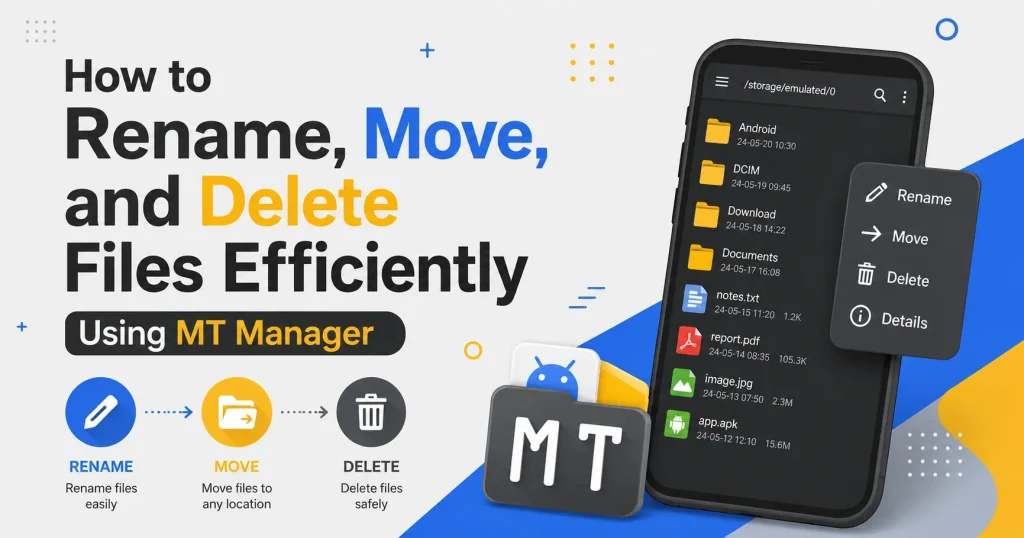
Unlike basic Android file managers, MT Manager offers a dual-panel interface, batch operations, and advanced navigation that significantly improve productivity. Whether you are organizing personal files or managing development projects, efficient file management saves both time and storage space. This guide explains how to rename, move, and delete files efficiently using MT Manager APK.
Why Proper File Management Matters
An organized storage system makes it much easier to locate important files when you need them. Well-structured folders reduce unnecessary searching while improving your overall workflow. Regular file management also prevents storage from becoming cluttered.
Poor organization often leads to duplicate files and forgotten downloads consuming valuable storage space. Cleaning unnecessary files helps maintain better device organization. Good habits also simplify future backups.
Quick Tip
Always review important files before deleting them and keep backups of valuable documents whenever possible.
Understanding Basic File Operations
File management consists of several simple actions that help organize your storage. The most common operations include renaming files, moving them into new folders, copying them, and deleting unwanted content. Learning these tasks improves efficiency on any Android device.
MT Manager combines all these operations into one easy-to-use interface. Users can complete everyday tasks with only a few taps. The application makes file organization much more convenient.
Benefits of Efficient File Management
Managing files properly improves both productivity and storage organization. Organized folders make navigation faster while reducing unnecessary clutter. Users also spend less time searching for important documents.
Efficient file management helps maintain cleaner backups and better folder structures. It becomes easier to separate work files, personal media, and application resources. Long-term organization saves considerable time.
Key Benefits
- Faster file organization
- Cleaner storage structure
- Easy folder navigation
- Save storage space
- Better backup management
- Reduced duplicate files
- Improved productivity
- Easier project management
Why Use MT Manager?
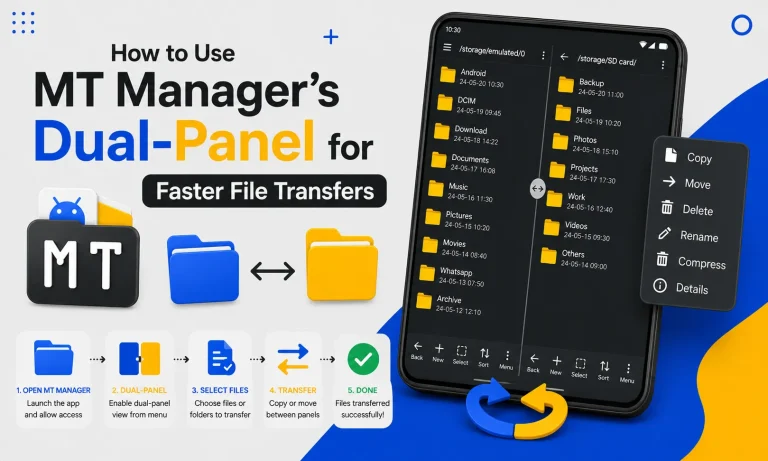
MT Manager offers advanced file management tools beyond what many standard Android file managers provide. Features like dual-panel navigation and batch operations allow users to organize large file collections much more efficiently. This creates a workflow similar to desktop file management.
The application also supports archive management, text editing, and APK browsing. Everything is available within one convenient interface. This reduces the need for multiple file management apps.
Common File Types You Can Manage
MT Manager works with nearly every common file type stored on Android devices. Whether you manage personal documents or development resources, the application provides a consistent workflow. Organized file management becomes much easier.
| File Type | Supported |
|---|---|
| APK Files | Yes |
| Documents | Yes |
| Images | Yes |
| Videos | Yes |
| Music Files | Yes |
| ZIP Archives | Yes |
| JSON Files | Yes |
| XML Files | Yes |
Step 1: Open MT Manager
Launch MT Manager on your Android device and allow it to load your available storage locations. The main screen displays your internal storage, SD card, and accessible folders. From here, you can begin managing your files.
Spend a few moments exploring the interface if you are using it for the first time. Understanding the navigation makes future tasks much easier. The dual-panel layout improves workflow immediately.
Step 2: Locate the File
Navigate to the folder containing the file you want to manage. This may include documents, downloads, APK installers, photos, or videos. Finding the correct file is the first step before performing any operation.
Verify the filename before making changes. Working with the correct file prevents unnecessary mistakes. Organized folders simplify this process.
How to Rename Files
Renaming files creates a cleaner and more organized storage system. Meaningful filenames make documents much easier to identify later. Good naming habits improve long-term productivity.
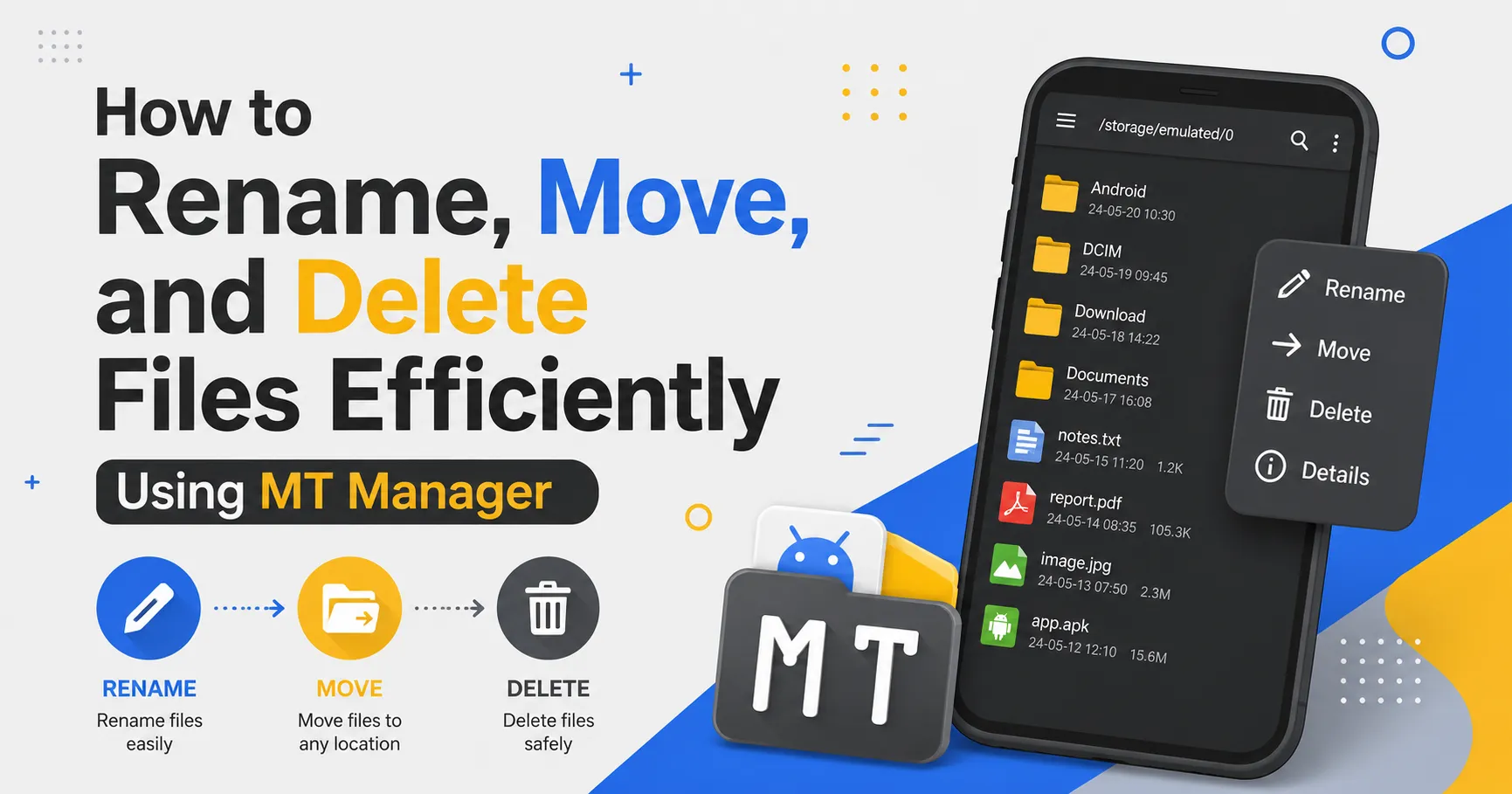
Select the file and choose the Rename option from the available menu. Enter a clear descriptive name before saving the change. Confirm that the new filename accurately reflects the file’s purpose.
Tips for Better File Names
- Use descriptive names.
- Include project titles.
- Add dates when necessary.
- Avoid unnecessary symbols.
- Keep filenames easy to read.
- Maintain consistent naming.
- Organize similar files together.
How to Move Files
Moving files transfers them from one folder to another without creating duplicate copies. This is useful when organizing downloads, media collections, or project files. Well-organized folders improve accessibility.
Select the desired file and choose the Move option. Open the destination folder using the second panel and confirm the transfer. The dual-panel interface makes this process significantly faster.
How to Delete Files
Deleting unnecessary files helps recover valuable storage space and reduce clutter. Removing outdated downloads, duplicate images, and unused APK files keeps your storage organized. Regular cleanup also improves file management.
Always review selected files before confirming deletion. Accidentally removing important documents can create unnecessary problems. Backups provide additional protection.
Using Batch Operations
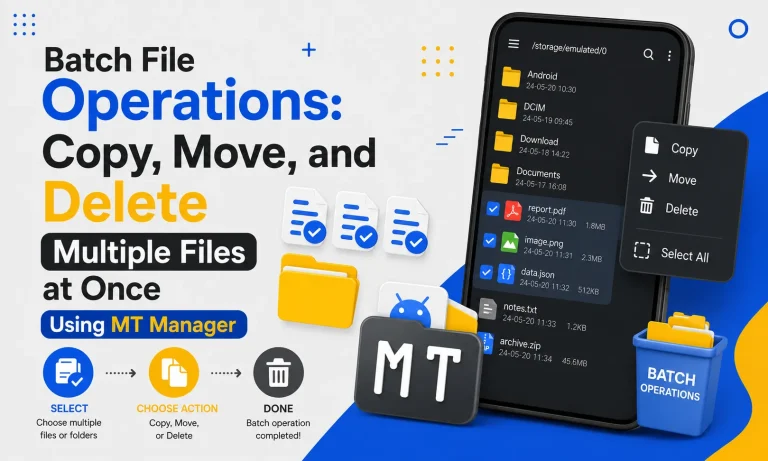
Batch operations allow users to rename, move, or delete multiple files simultaneously. Instead of repeating the same action individually, multiple files can be processed together. This greatly improves productivity.
Large folders become easier to organize using batch selection. Hundreds of files can be managed within minutes. This feature is especially useful for media libraries and APK collections.
Organizing Downloads
The Downloads folder often becomes overcrowded because new files are saved there automatically. Move important documents into dedicated folders and remove unnecessary downloads regularly. Organized downloads improve storage management.
Leaving every file inside Downloads creates unnecessary clutter. Regular cleanup keeps navigation simple. Smaller folders are easier to maintain.
Managing APK Files
Many Android users maintain APK installers for backups or testing. Organize them into folders based on version, application, or project type. Clear organization simplifies future updates.
Remove outdated installers that are no longer required. Smaller APK collections remain easier to browse. Good organization also saves storage space.
Organizing Photos and Videos
Photos and videos often consume the largest portion of Android storage. Creating separate folders for family photos, work media, screenshots, and travel images improves accessibility. Organized media collections remain easier to browse.
Delete duplicate or blurry images whenever possible. Well-maintained albums improve navigation. Smaller collections also simplify backups.
Practical Folder Organization
A structured folder system makes file management much more efficient. Grouping similar files together reduces unnecessary searching. Consistent organization improves productivity.
| Folder | Suggested Contents |
|---|---|
| APKs | Application installers |
| Documents | PDFs and office files |
| Photos | Personal images |
| Videos | Movies and recordings |
| Downloads | Temporary files |
| Backups | Important copies |
| Projects | Development resources |
| Archives | ZIP and RAR files |
Best Practices for File Management
Developing consistent habits keeps Android storage organized throughout the year. Small improvements prevent major cleanup sessions later. Regular maintenance creates better long-term results.
Recommended Practices
- Rename files immediately.
- Organize downloads weekly.
- Remove duplicate files.
- Create regular backups.
- Use descriptive folder names.
- Delete unnecessary files.
- Review storage monthly.
MT Manager vs Standard File Managers
| Feature | MT Manager | Standard Manager |
|---|---|---|
| Dual-Panel Interface | Yes | Usually No |
| Batch Operations | Yes | Limited |
| Advanced File Editing | Yes | Basic |
| Archive Management | Yes | Limited |
| APK Browsing | Yes | Rare |
| Productivity | High | Moderate |
Common Mistakes to Avoid
Deleting files without verifying their importance is a common mistake. Always review selected items before confirming deletion. Creating backups provides additional security.
Another mistake is using unclear filenames that become difficult to identify later. Descriptive names improve long-term organization. Good naming habits save time.
Frequently Asked Questions
Can MT Manager rename multiple files?
Yes, MT Manager supports batch file operations that simplify managing multiple files at once. This feature improves productivity considerably. Large collections become easier to organize.
Is moving files different from copying?
Yes, moving transfers files to a new location while removing them from the original folder. Copying creates duplicates while preserving the original files. Both options are available in MT Manager.
Should I back up files before deleting them?
Yes, important files should always have a backup before deletion. This protects valuable information from accidental loss. Backups improve long-term data security.
Can I organize APK files with MT Manager?
Yes, MT Manager is well suited for organizing APK installers into dedicated folders. Categorized collections simplify future updates and backups. Organized APK storage improves accessibility.
Is MT Manager beginner-friendly?
Yes, the application provides an intuitive interface suitable for both beginners and experienced users. File operations require only a few simple steps. The organized layout makes navigation straightforward.
Final Verdict
Efficient file management is essential for maintaining a clean, organized, and productive Android device. By learning how to rename files, move them into dedicated folders, delete unnecessary content, and use batch operations, you can significantly improve your storage organization and daily workflow. MT Manager APK provides all the tools needed to manage files quickly and professionally, making it an excellent choice for anyone who regularly works with documents, APK files, media, and project resources.