The Dual-Panel Shortcut: Why Two Screens Beat One for File Transfers
Managing files on Android has become much easier with modern file management tools. One of the biggest productivity features is the dual-panel interface, which allows users to view two folders simultaneously. This feature saves time, reduces navigation, and makes file transfers significantly more efficient.
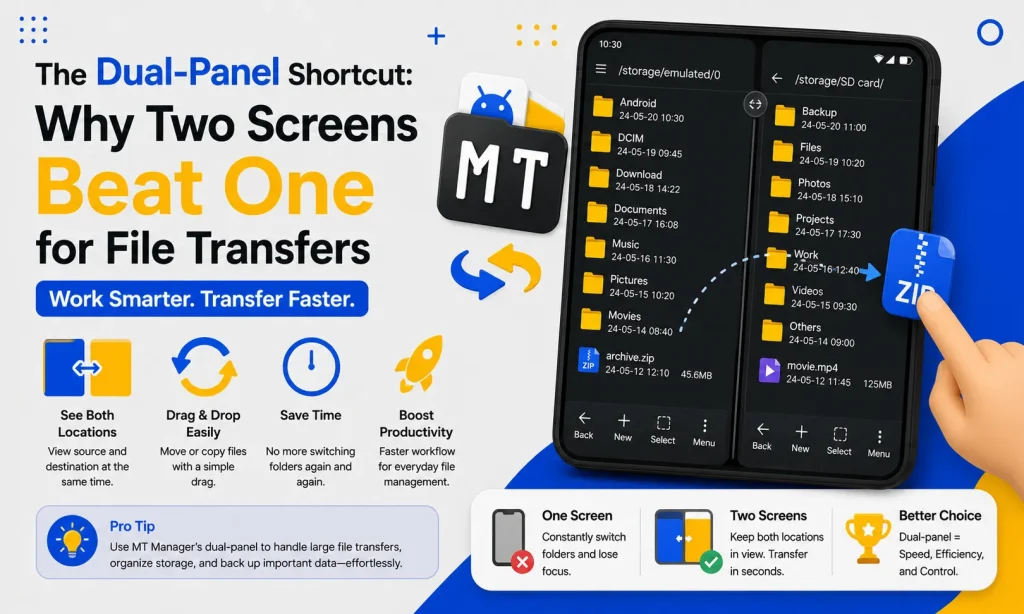
For users of MT Manager, the dual-panel layout is one of its most valuable capabilities. Instead of constantly switching between folders, users can copy, move, rename, and organize files with greater speed. Whether you’re handling media files, documents, or project folders, dual-panel navigation simplifies every task.
What Is a Dual-Panel File Manager?
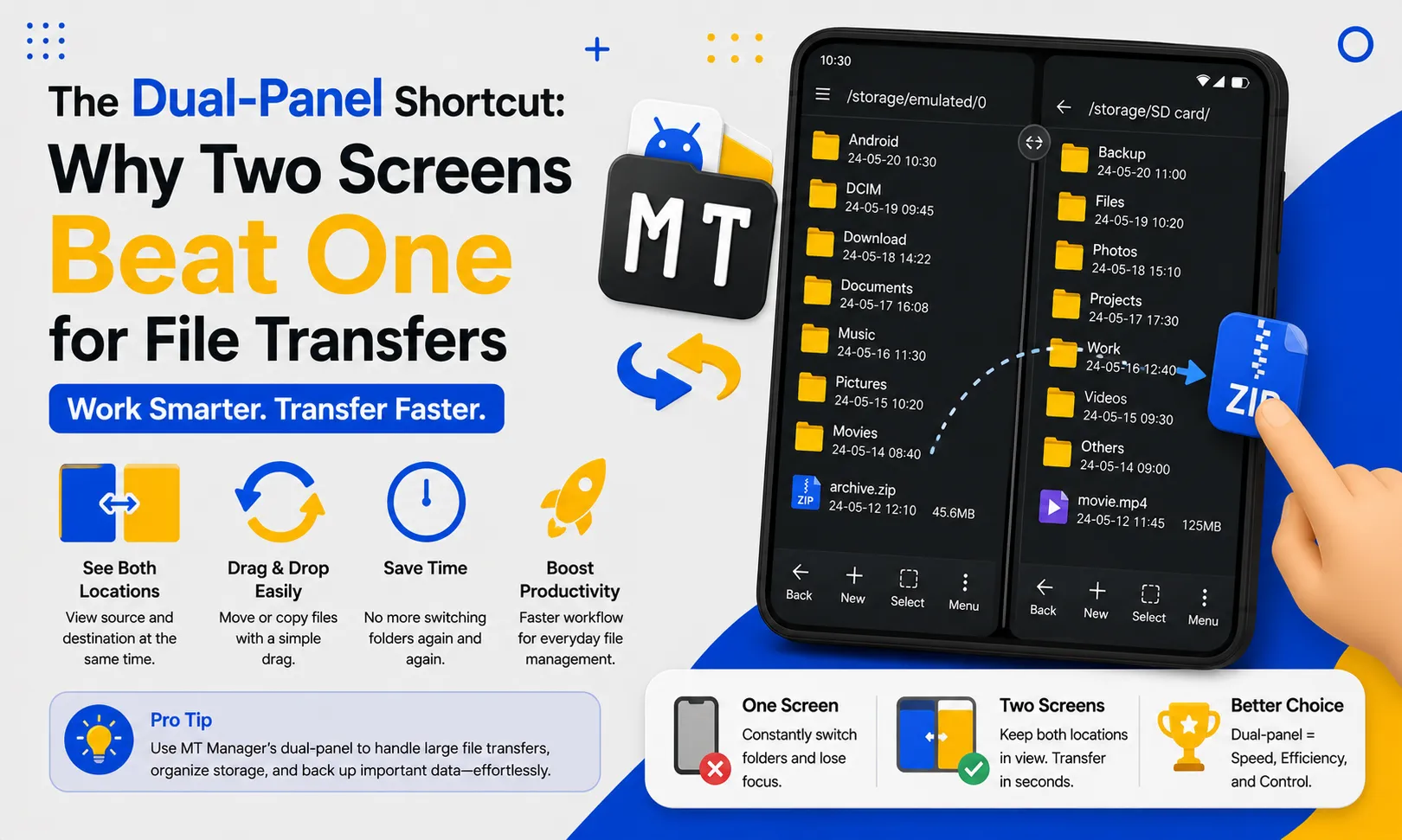
A dual-panel file manager displays two directory windows on the same screen. Each panel works independently, allowing users to browse different storage locations at the same time. This design eliminates unnecessary back-and-forth navigation.
Traditional file managers usually show only one folder at a time. Users must repeatedly open and close directories during file transfers. The dual-panel approach removes this limitation and creates a much smoother workflow.
Quick Tip: Dual-panel mode is especially useful when transferring files between Internal Storage, SD Cards, USB drives, and compressed archives.
Why Two Panels Are Better Than One
Single-panel navigation may work for simple tasks, but larger file operations become repetitive. Constantly switching folders increases the chances of mistakes and slows productivity. A dual-panel layout keeps both the source and destination visible throughout the process.
This approach reduces unnecessary taps and improves efficiency. Users spend more time managing files and less time navigating menus.
Key Benefits
- Faster file transfers
- Easier copy and paste operations
- Improved folder organization
- Reduced navigation time
- Better multitasking
- Lower risk of moving files to the wrong location
How MT Manager Uses Dual-Panel Navigation
MT Manager offers a professional-style dual-panel interface inspired by desktop file managers. Both panels remain active, allowing users to browse different folders independently. This makes complex file operations much easier.
For example, one panel can display your Downloads folder while the other shows a backup directory. Files can then be copied or moved directly without repeatedly opening different locations.
Comparing Single Panel vs Dual Panel
| Feature | Single Panel | Dual Panel |
|---|---|---|
| View Two Folders | No | Yes |
| File Transfers | Slower | Faster |
| Folder Navigation | Repetitive | Simple |
| Copy & Move Tasks | Multiple Steps | Fewer Steps |
| Productivity | Moderate | High |
| Large File Management | Less Efficient | More Efficient |
Common File Transfer Tasks
The dual-panel interface simplifies many everyday operations. Instead of jumping between folders, users complete tasks with minimal effort. This saves valuable time during large projects.
Common tasks include:
- Copying photos
- Moving videos
- Organizing music
- Managing documents
- Backing up folders
- Extracting archives
- Transferring APK files
- Cleaning storage
Copy Files Faster
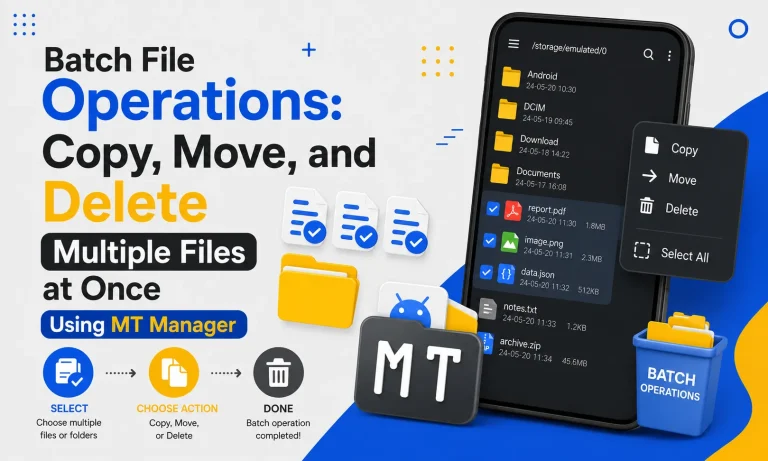
Copying files is one of the biggest advantages of dual-panel mode. Users select files in one panel while the destination remains visible in the other panel. The transfer begins immediately without extra navigation.
This workflow is especially useful when moving hundreds of files. It reduces repetitive actions and improves overall efficiency.
Move Files Without Losing Track
Moving files requires selecting a source and destination. With two visible panels, users always know where files are going. This minimizes accidental mistakes.
Large media libraries become much easier to organize. Photos, videos, and documents can be sorted into folders within minutes.
Organize Storage More Efficiently
Many Android devices become cluttered over time. Downloads, screenshots, documents, and application files often accumulate in different locations. Dual-panel navigation makes organizing these folders much faster.
Users can create new folders and move related files immediately. Everything remains visible during the process.
Simplify Backup Creation
Creating backups becomes much easier when both storage locations remain open. Users simply drag or copy files from one directory to another. This workflow reduces the possibility of missing important files.
Regular backups protect valuable documents and media. Keeping organized backups also saves time when switching devices.
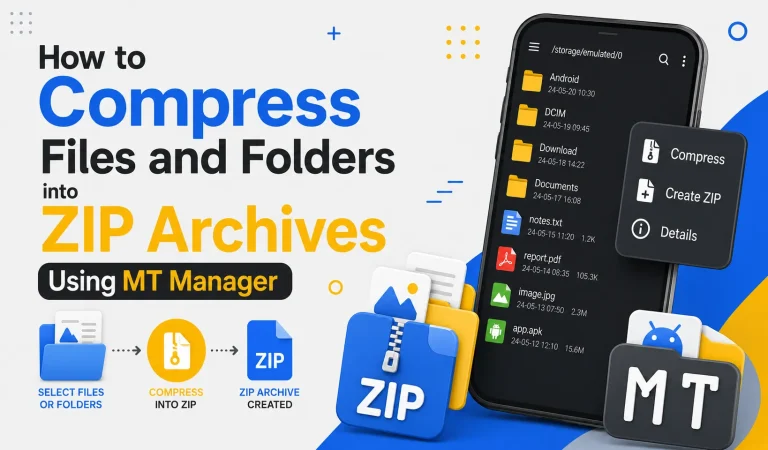
Manage Compressed Files Easily
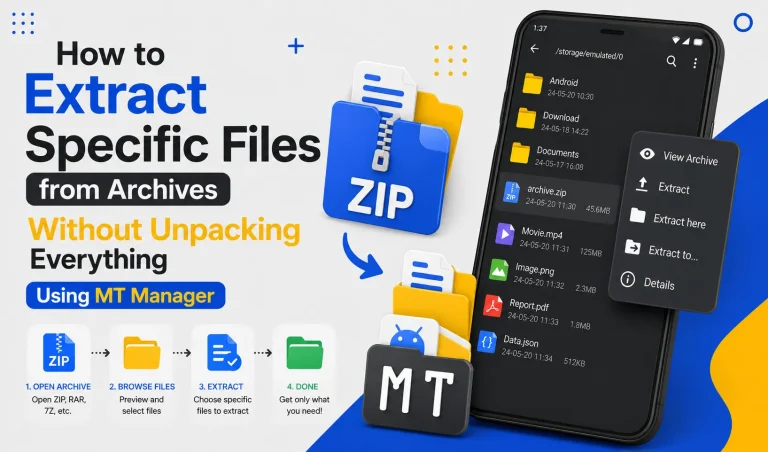
Compressed archives are common for sharing large collections of files. MT Manager allows users to work with archive contents while another folder remains open. Files can be extracted directly into the desired destination.
This removes unnecessary intermediate steps. Archive management becomes quicker and more organized.
Save Time During Large Transfers
Large file collections often require dozens of folder changes in traditional file managers. Dual-panel navigation keeps both directories available throughout the transfer. Users complete tasks much more quickly.
This advantage becomes noticeable when working with hundreds of photos or videos. Productivity improves significantly during repetitive operations.
Reduce Navigation Errors
Switching between folders repeatedly increases the likelihood of selecting the wrong destination. Dual-panel layouts reduce confusion because both locations remain visible. Users verify everything before completing the transfer.
This improves confidence during important file operations. It also reduces accidental file movement.
Improve Workflow for Power Users
Advanced Android users often manage multiple directories every day. Developers, designers, photographers, and content creators regularly organize large collections of files. Dual-panel navigation supports these demanding workflows.
Even casual users benefit from a cleaner and more efficient interface. Simple improvements in navigation can save hours over time.
Best Situations to Use Dual Panels
The feature performs particularly well during larger organizational tasks. Instead of opening folders repeatedly, users maintain a clear overview of their storage.
Some ideal situations include:
- Organizing project files
- Moving downloaded documents
- Managing image collections
- Creating storage backups
- Cleaning unnecessary folders
- Sorting work-related files
- Preparing files before sharing
Tips for Faster File Management
Using a few simple habits can improve efficiency even further. Organized folders and consistent naming conventions make navigation much easier. Regular maintenance also prevents storage from becoming cluttered.
Helpful tips include:
- Create dedicated folders for documents.
- Rename files with meaningful names.
- Delete unnecessary duplicates regularly.
- Keep backups of important data.
- Organize downloads every week.
- Separate personal and work files.
Advantages of Using Dual-Panel Navigation
| Advantage | Benefit |
|---|---|
| Faster Navigation | Less time opening folders |
| Better Organization | Easier folder management |
| Improved Accuracy | Fewer transfer mistakes |
| Higher Productivity | Complete tasks faster |
| Cleaner Storage | Better file structure |
| Easier Backups | Simple data protection |
Frequently Asked Questions
What is a dual-panel file manager?
A dual-panel file manager displays two folders simultaneously. This allows users to copy and move files much faster than traditional single-panel layouts.
Why is dual-panel navigation useful?
It reduces unnecessary folder switching and speeds up file transfers. Users can always see both the source and destination folders.
Is the dual-panel feature suitable for beginners?
Yes. Although it appears advanced at first, most users quickly become comfortable with the layout after a few file transfers.
Can I organize large folders more efficiently?
Yes. Large collections of photos, videos, documents, and downloads become much easier to manage when both folders remain visible.
Does dual-panel navigation improve productivity?
Absolutely. Fewer taps, quicker navigation, and better organization make everyday file management considerably faster.
Final Verdict
The dual-panel interface is one of the most practical features available in modern Android file management. By displaying two folders at the same time, it streamlines copying, moving, organizing, and backing up files while reducing navigation and mistakes. Users handling large file collections will quickly notice the improvement in speed and efficiency.
If you regularly manage documents, media, archives, or project folders, the dual-panel functionality in MT Manager can make everyday file operations far more productive. Its intuitive layout, efficient workflow, and time-saving design help transform Android file management into a faster and more organized experience.