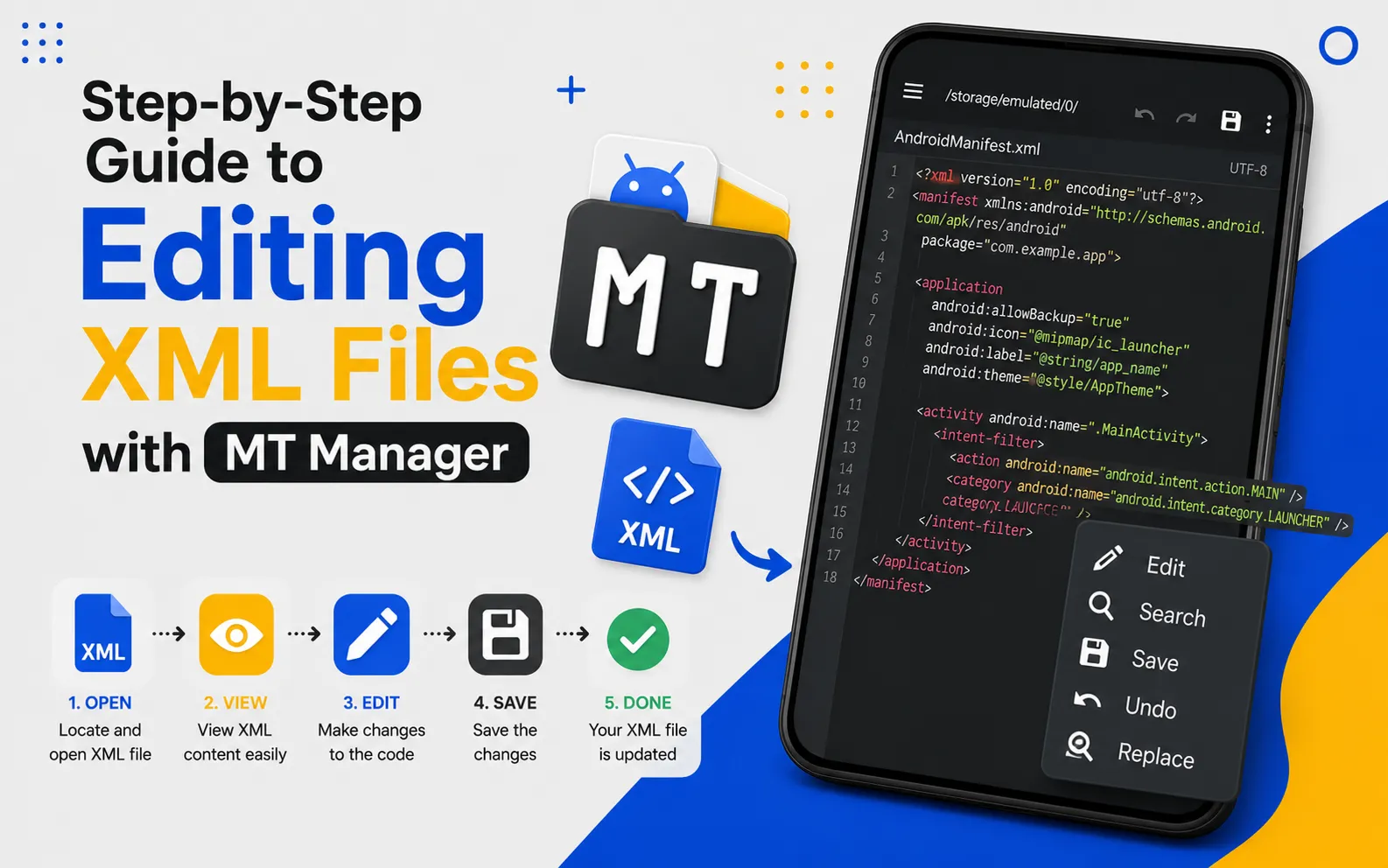
Step-by-Step Guide to Editing XML Files with MT Manager
Editing XML files is an essential skill for Android enthusiasts, developers, and advanced users who want to customize applications or modify configuration files. XML files control layouts, settings, permissions, colors, strings, and many other aspects of Android apps. MT Manager APK provides a powerful built-in XML editor that makes viewing and editing these files much easier.
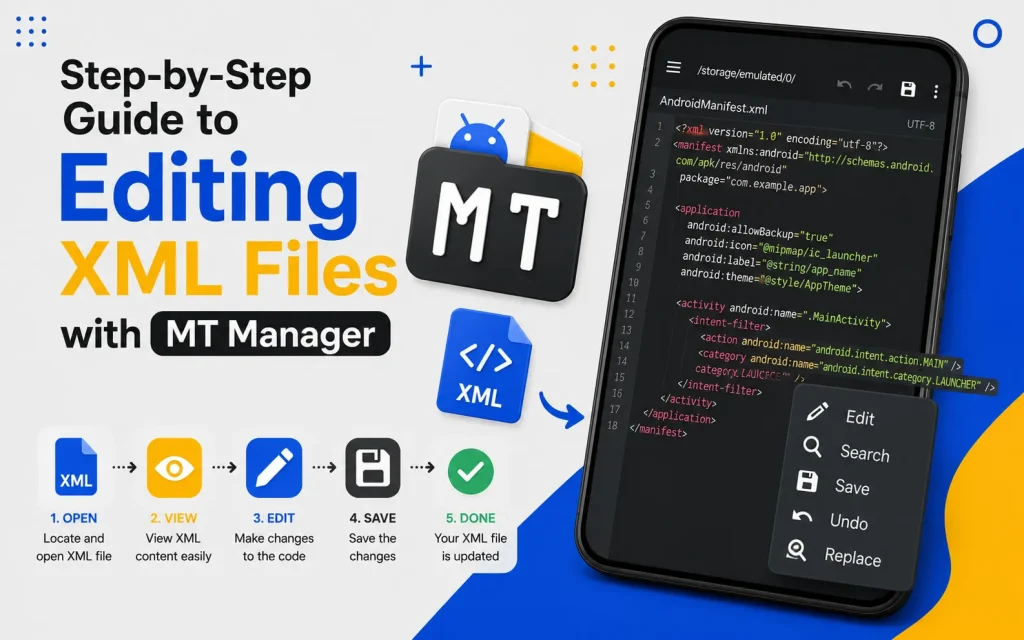
Unlike basic file managers, MT Manager includes advanced tools for browsing APK contents and editing XML files without switching between multiple applications. Its clean interface and dual-panel layout simplify navigation while reducing unnecessary steps. This guide explains how to edit XML files safely and efficiently using MT Manager APK.
What Is an XML File?
XML stands for Extensible Markup Language, which is commonly used to store structured information. Android applications rely on XML files for layouts, resources, themes, strings, menus, and configuration settings. These files organize information in a format that is easy for both developers and applications to understand.
Most Android applications contain dozens of XML files inside their resources. Each file serves a different purpose depending on the application’s design. Understanding these files helps users learn how Android applications are organized.
Quick Tip
Always create a backup before editing any XML file so you can restore the original version if necessary.
Why Edit XML Files?
XML editing allows users to customize various parts of an application or project. Developers often edit layouts, change text, modify colors, or adjust interface settings during testing. Learning XML editing also improves your understanding of Android app structure.
Many users edit XML files for educational purposes while learning Android development. It provides valuable insight into how applications are built. Even small changes can demonstrate how XML controls app behavior.
Why Use MT Manager for XML Editing?
MT Manager combines file management and XML editing into a single application. Users can browse folders, open APK contents, and edit XML files without installing separate tools. This creates a faster and more efficient workflow.
The built-in editor supports syntax highlighting and organized formatting. Reading XML becomes easier because tags remain clearly structured. This improves both editing accuracy and overall productivity.
Features That Make XML Editing Easier
MT Manager includes several tools designed specifically for working with structured files. These features reduce editing mistakes and improve navigation through large documents. Both beginners and experienced users benefit from the organized interface.
Key XML Editing Features
- Built-in XML editor
- Syntax highlighting
- Dual-panel navigation
- Fast file search
- Copy and paste support
- Text replacement tools
- Easy file saving
- APK resource browsing
Step 1: Open MT Manager
Launch MT Manager from your Android device. Wait until the application loads your available storage locations and directories. The home screen provides access to both internal and external storage.
Take a moment to familiarize yourself with the interface before opening any files. Understanding the navigation improves editing efficiency. The dual-panel layout makes browsing much easier.
Step 2: Locate the XML File
Browse to the folder containing the XML file you want to edit. XML files are commonly found inside application resource folders or extracted project directories. Selecting the correct file is the first step toward successful editing.
Verify the filename before opening it. Editing the wrong file may cause unexpected results within your project. Careful navigation reduces unnecessary mistakes.
Step 3: Open the XML Editor
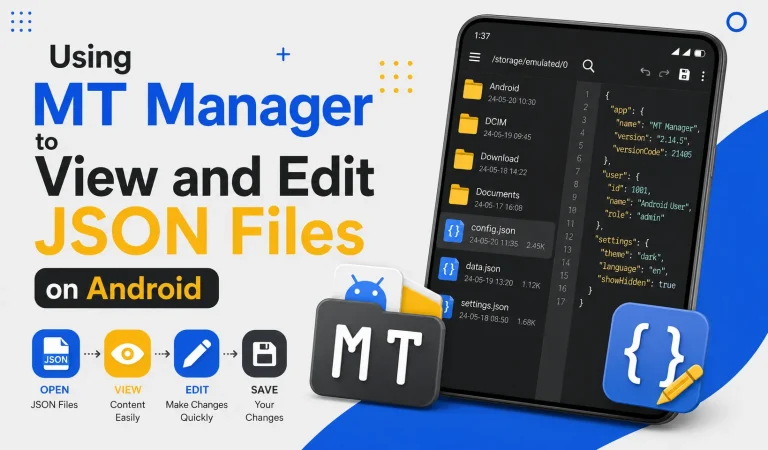
Tap the XML file to open it using MT Manager’s built-in editor. The editor displays the file with structured formatting and readable tags. Organized code is much easier to review than plain text.
Syntax highlighting improves readability by separating different parts of the document. This helps users identify elements more quickly. Large XML files become easier to understand.
Step 4: Review the File Structure
Before making changes, read through the XML document carefully. Understanding the hierarchy of elements helps prevent editing errors. Taking time to review the structure improves editing accuracy.
Notice how tags open and close in pairs. Proper nesting is important for maintaining valid XML formatting. Small structural mistakes may prevent the file from working correctly.
Step 5: Edit the Required Values
Locate the specific values you want to modify. This might include text, dimensions, colors, identifiers, or configuration settings depending on the file. Make only the necessary changes to avoid introducing unintended errors.
Avoid deleting important tags unless you fully understand their purpose. Small edits are easier to review and troubleshoot. Saving incremental changes also helps maintain stability.
Step 6: Save the File
After completing your edits, save the XML file using the editor’s save option. Confirm that the changes have been written successfully before closing the document. Saving frequently helps prevent accidental data loss.
If you are working on a project, review the file one more time. Checking your edits immediately reduces the chance of overlooking mistakes. Careful verification leads to better results.
Step 7: Test Your Changes
Open the related project or application to verify that the modifications behave as expected. Testing helps identify formatting errors or incorrect values before additional edits are made. Early testing also simplifies troubleshooting.
If something does not work correctly, compare your changes with the original backup. Small corrections are often easier than rewriting an entire file. Consistent testing improves confidence while editing.
Common XML Files in Android Projects
Different XML files serve different purposes within Android applications. Understanding their roles helps users locate the correct file more quickly. Organized knowledge also improves editing efficiency.
| XML File | Purpose |
|---|---|
| strings.xml | Stores application text |
| colors.xml | Defines color values |
| styles.xml | Controls themes and styles |
| AndroidManifest.xml | Contains application configuration |
| activity_main.xml | Defines screen layouts |
| menu.xml | Creates navigation menus |
Best Practices for XML Editing
Good editing habits reduce errors and improve long-term project organization. Following a consistent workflow makes future maintenance much easier. Careful planning saves time during larger projects.
Recommended Practices
- Create backups before editing.
- Edit one section at a time.
- Keep formatting organized.
- Save changes regularly.
- Review every modification.
- Test after editing.
- Document important changes.
Common Mistakes to Avoid
Editing XML without a backup is one of the most common mistakes. A backup allows you to restore the original file if something goes wrong. This simple precaution prevents unnecessary frustration.
Another mistake is breaking the XML structure by removing required tags or incorrect nesting. Always verify that every opening tag has a matching closing tag. Proper formatting keeps the document valid.
Benefits of Learning XML Editing
Understanding XML improves your knowledge of Android application structure. It also helps developers and advanced users become more comfortable with project organization. These skills remain valuable across many Android development tasks.
Learning XML encourages better problem-solving during application customization. Even basic editing experience builds confidence over time. Continuous practice leads to greater accuracy.
Frequently Asked Questions
Is XML difficult to learn?
No, XML uses a structured format that becomes easier with practice. Understanding tags and hierarchy is the most important part. Beginners can learn the basics quickly.
Can MT Manager edit XML files directly?
Yes, MT Manager includes a built-in XML editor. Users can open, edit, and save supported XML files within the application. This simplifies the editing workflow.
Should I back up XML files before editing?
Yes, creating backups is always recommended. A backup allows you to restore the original version if an error occurs. It is one of the safest editing practices.
What happens if XML formatting is incorrect?
Incorrect formatting may cause configuration problems or prevent the related project from functioning correctly. Reviewing the file before saving helps reduce mistakes. Testing after editing is also important.
Is MT Manager suitable for beginners?
Yes, its organized interface and built-in editor make XML editing easier to understand. Beginners can gradually learn while working with structured files. The application provides a practical environment for learning.
Final Verdict
Editing XML files becomes much more manageable when you use the right tools and follow a structured workflow. With its built-in editor, syntax highlighting, and efficient navigation, MT Manager APK helps users review and modify XML files with greater confidence and accuracy. Whether you are learning Android project structure, adjusting configuration files, or exploring application resources, mastering XML editing is a valuable skill that improves both productivity and technical understanding.