How to Extract Specific Files from Archives Without Unpacking Everything
Compressed archives are one of the most convenient ways to store and share multiple files on Android devices. Whether you’re downloading APK packages, project folders, or document collections, ZIP and RAR archives help reduce storage usage while keeping files organized. MT Manager APK makes it easy to extract only the files you need without unpacking the entire archive.
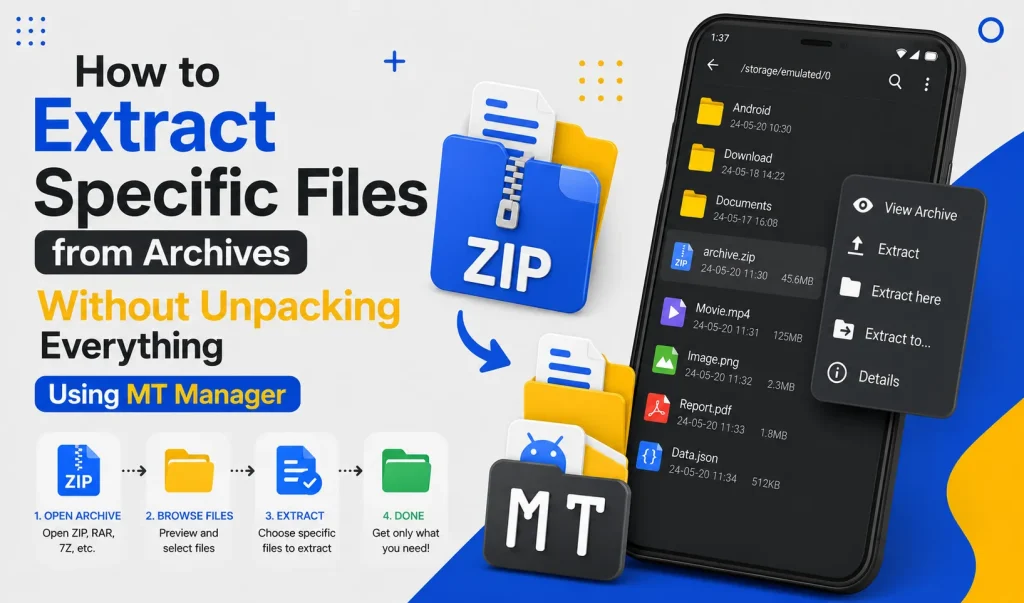
Many users waste storage space by extracting every file, even when they only need one document or folder. Selective extraction saves time, preserves storage, and keeps your device organized. In this guide, you’ll learn how to extract individual files from archives using the MT Manager APK.
What Is Selective File Extraction?
Selective file extraction allows users to extract only specific files or folders from a compressed archive. Instead of unpacking the complete ZIP or RAR file, you simply choose the items you need. This method improves efficiency and avoids unnecessary storage consumption.
Large archives often contain hundreds of files that may never be used. Extracting only the required content keeps your storage clean and organized. It also reduces the time needed to complete file operations.
Quick Tip
If you only need one image, document, APK, or folder from an archive, use selective extraction instead of unpacking the entire file.
Why Extract Individual Files Instead of Everything?
Many downloaded archives include extra documentation, sample files, or resources that you may not need. Extracting everything increases storage usage and creates unnecessary clutter inside your folders. Selective extraction solves this problem by copying only the required files.
The process is also much faster, especially when working with large compressed archives. Smaller extraction jobs finish quickly while reducing unnecessary disk activity. This creates a smoother file management experience.
Benefits of Selective Extraction
Selective extraction offers several advantages over traditional full extraction. It improves storage management while saving valuable time. Android users who frequently download compressed files will notice immediate productivity improvements.
Key Benefits
- Save storage space
- Faster extraction process
- Reduce folder clutter
- Organize files efficiently
- Extract only important data
- Easier archive management
- Better workflow
- Improved productivity
Why Use MT Manager for Archive Extraction?
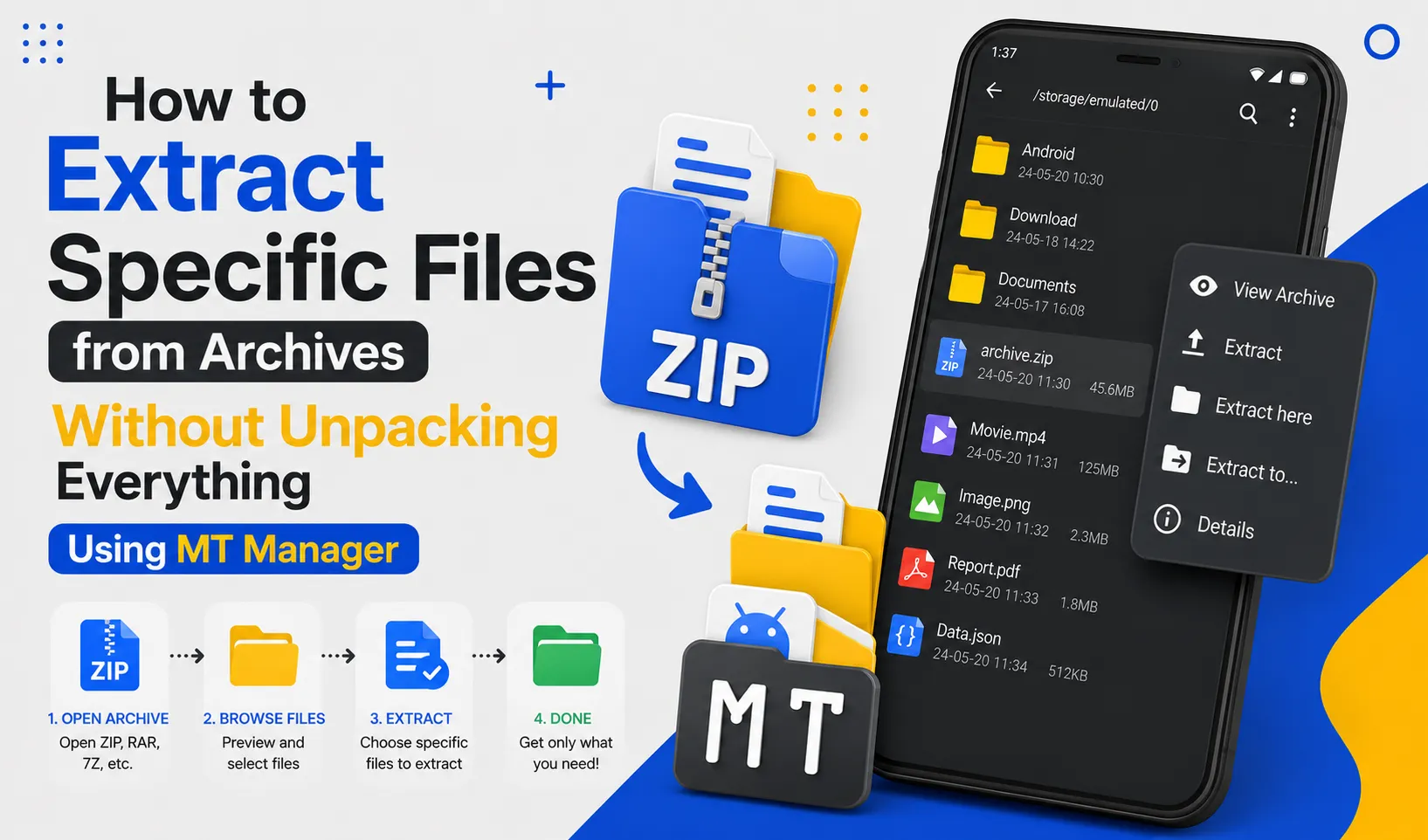
MT Manager includes a built-in archive browser that allows users to explore ZIP and RAR files without extracting them first. You can preview folders, locate specific files, and extract only what you need. This eliminates the need for separate archive management applications.
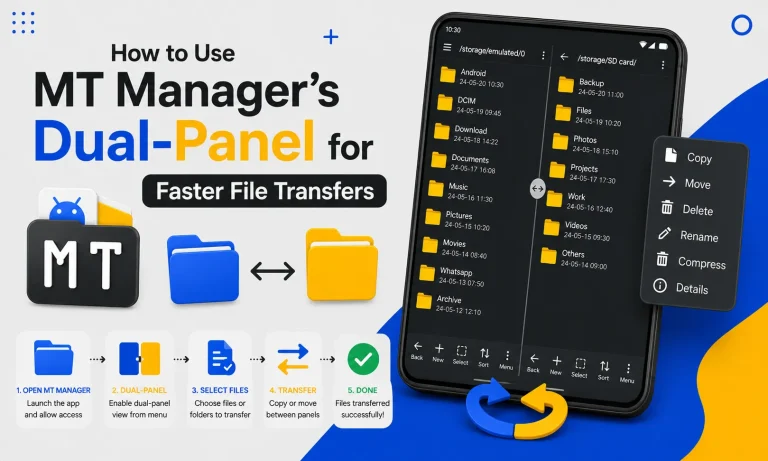
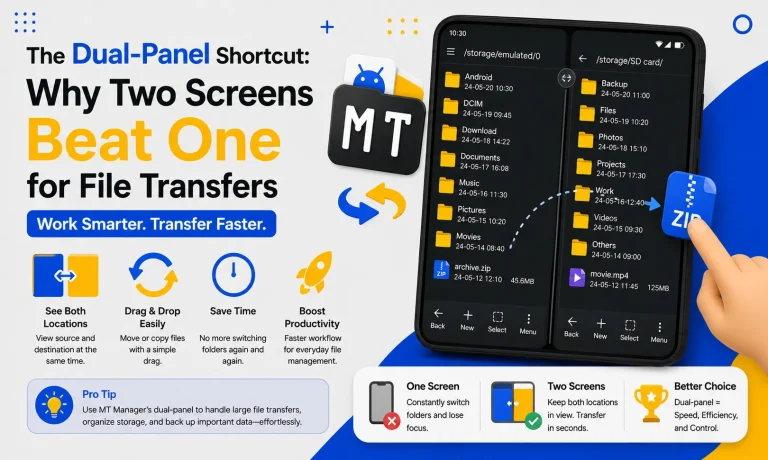
The dual-panel interface also simplifies moving extracted files to another location. One panel displays the archive while the other shows the destination folder. This makes file organization much easier.
Supported Archive Formats
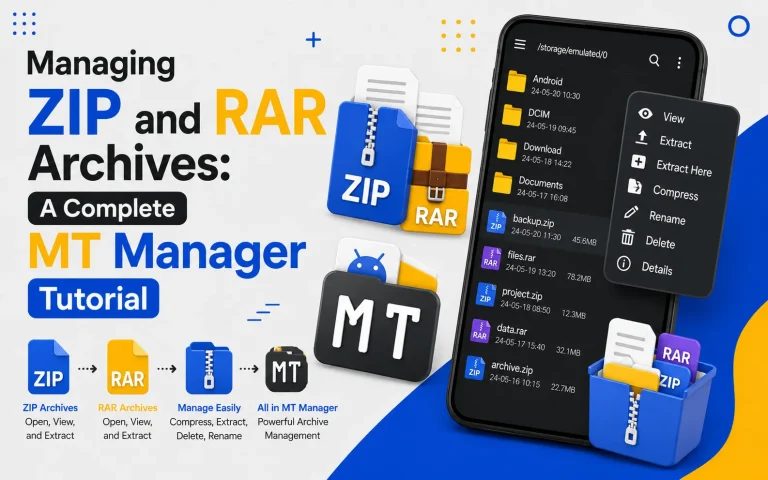
MT Manager supports many commonly used compressed file formats. Users can browse archive contents directly without unnecessary conversion. This flexibility makes it useful for everyday Android file management.
| Archive Format | Supported |
|---|---|
| ZIP | Yes |
| RAR | Yes |
| JAR | Yes |
| APK Packages | Yes |
| Compressed Project Files | Yes |
| Backup Archives | Yes |
Step 1: Open MT Manager
Launch MT Manager on your Android device and allow the application to load your storage directories. The main interface provides access to internal storage, SD cards, and downloaded files. From there, you can browse directly to your archive.
Take a few moments to understand the navigation if you are using the application for the first time. The dual-panel interface improves workflow throughout the extraction process. Familiarity with the layout saves time later.
Step 2: Locate the Archive
Navigate to the folder containing the ZIP or RAR archive. Downloaded archives are usually stored inside the Downloads folder, project directories, or backup locations. Select the correct archive before opening it.
Confirm the archive name carefully before continuing. Opening the correct file prevents unnecessary confusion. Organized folders also improve productivity.
Step 3: Open the Archive
Tap the archive to browse its contents. MT Manager displays every folder and file without requiring immediate extraction. This allows you to inspect everything before making a decision.
Browsing archives directly is much more efficient than extracting everything first. You immediately see which files are available. This saves both storage space and processing time.
Step 4: Browse the Folder Structure
Navigate through the archive exactly as you would with ordinary folders. Open directories until you locate the file or folder you want to extract. Everything remains inside the compressed archive during browsing.
Large archives often contain multiple folders and resources. Organized navigation makes locating files much easier. The interface remains responsive even with large archives.
Step 5: Select the Required Files
Choose only the files or folders you actually need. MT Manager allows users to select individual items without affecting the rest of the archive. This selective approach improves storage management.
Review your selection before extraction begins. Confirming the correct files reduces unnecessary work later. Careful selection also prevents accidental extraction.
Step 6: Extract the Selected Files
Choose the extraction option and specify a destination folder. Only the selected files will be copied from the archive while everything else remains compressed. The process usually completes within a few seconds.
Extraction speed depends on the size of the selected files. Smaller files finish almost instantly. Large media files naturally require additional time.
Step 7: Verify the Extracted Files
Open the destination folder and confirm that the extracted files appear correctly. Reviewing the results helps ensure nothing important was missed. Verification also confirms that the extraction was completed successfully.
Keeping your destination folder organized improves future file management. Well-structured storage makes searching easier. Small organizational habits save time over the long term.
Common Situations Where Selective Extraction Helps
Selective extraction is useful in many everyday Android tasks. It allows users to avoid unnecessary downloads while improving organization. Large archives become much easier to manage.
| Situation | Benefit |
|---|---|
| APK Packages | Extract installer only |
| Document Archives | Copy required documents |
| Photo Collections | Extract selected images |
| Backup Files | Restore individual folders |
| Project Files | Access specific resources |
| Theme Packages | Extract required assets |
Extracting APK Files
Many Android applications are distributed inside compressed archives together with additional files. Users often need only the APK installer while ignoring documentation or sample content. Selective extraction simplifies this process.
Keeping unnecessary files inside the archive reduces storage usage. APK collections also remain better organized. This improves overall file management.
Accessing Documents Quickly
Large document archives may contain dozens of PDFs, spreadsheets, or presentations. Instead of extracting everything, users can copy only the required files. This saves both storage and valuable time.
Students and office workers especially benefit from this workflow. Project folders remain cleaner and easier to manage. Finding important files becomes much faster.
Managing Backup Archives
Backup archives frequently contain multiple folders representing different categories of data. Selective extraction allows users to restore only the required files instead of recovering the entire backup. This creates a more flexible restoration process.
Smaller restorations also complete more quickly. Users avoid unnecessary storage consumption during recovery. Organized backups remain easier to manage.
Tips for Efficient Archive Management
Developing good archive management habits improves productivity over time. Small improvements create noticeable workflow benefits. Consistency leads to better organization.
Best Practices
- Keep archives in dedicated folders.
- Create backups before editing files.
- Verify extracted files immediately.
- Delete duplicate archives regularly.
- Use descriptive filenames.
- Maintain free storage space.
- Organize downloaded files frequently.
Selective Extraction vs Full Extraction
| Feature | Selective Extraction | Full Extraction |
|---|---|---|
| Storage Usage | Low | High |
| Extraction Speed | Fast | Slower |
| Folder Clutter | Minimal | More Clutter |
| Productivity | Higher | Moderate |
| File Organization | Better | Basic |
| Large Archives | Excellent | Less Efficient |
Common Mistakes to Avoid
Extracting the wrong files is one of the most common mistakes. Always review the archive contents before selecting items for extraction. Careful verification improves accuracy.
Another mistake is extracting everything without checking available storage space. Large archives may consume significant storage unnecessarily. Selective extraction prevents this problem.
Frequently Asked Questions
Can MT Manager extract individual files?
Yes, MT Manager allows users to extract selected files without unpacking the complete archive. This improves storage efficiency and saves time. The feature works with supported archive formats.
Does selective extraction save storage space?
Yes, only the required files are copied to your device. Unnecessary files remain inside the compressed archive. This reduces storage consumption significantly.
Can I preview archive contents before extraction?
Yes, MT Manager allows you to browse folders and files inside supported archives. You can review everything before selecting the items you want. This improves workflow efficiency.
Is selective extraction faster?
Yes, extracting only a few files requires much less processing time than unpacking an entire archive. Smaller extraction jobs are completed quickly. This improves overall productivity.
Is this feature suitable for beginners?
Yes, the archive browser is easy to understand and simple to navigate. Even new users can quickly learn how to extract individual files. The organized interface makes the process straightforward.
Final Verdict
Selective file extraction is one of the smartest ways to manage compressed archives on Android because it saves storage space, reduces unnecessary clutter, and speeds up file management. With its built-in archive browser, dual-panel interface, and flexible extraction tools, MT Manager APK makes it easy to extract only the files you need without unpacking entire ZIP or RAR archives. Whether you’re working with APK packages, project files, backups, or document collections, mastering selective extraction will help you keep your device organized while improving everyday productivity.